Table of Contents
One of the most common performance issues in Chrome extensions comes from loading and running code when it is not actually needed. Poorly optimized browser extensions can consume unnecessary memory, wake up the CPU too often, and slow down the browser. Luckily, there are a few best practices that can dramatically reduce memory and CPU resource usage.
This article is written for developers looking to reduce memory usage and CPU load in their existing browser extensions. It focuses on two core principles: optimizing scripts and testing performance through proper debugging.
Optimizing Scripts
Be Careful with Content Scripts
Content scripts are injected into web pages, which means they can easily become expensive if you load them everywhere. A common mistake is loading content.js on all websites, even when the browser extension only needs to work on specific domains. Every injected script adds memory usage and execution overhead.
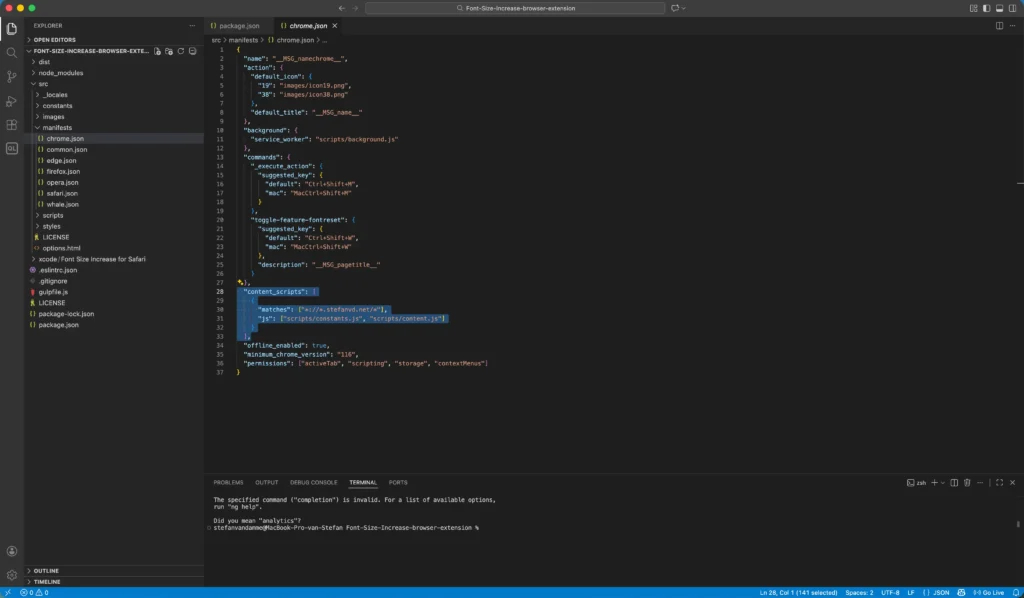
Instead, only inject content scripts where they are truly required. For example, if your browser extension only interacts with your own website, limit the matches field in manifest.json:
  "content_scripts": [
    {
      "matches": ["*://*.stefanvd.net/*"],
      "js": ["scripts/constants.js", "scripts/content.js"]
    }
  ],
In this case, my Font-Size Increase browser extension and Font-Size Decrease browser extension only runs on stefanvd.net, avoiding unnecessary script injection on unrelated pages like Google Search or the YouTube video website.
Avoid Heavy setInterval Usage
Using setInterval in content scripts or background scripts can easily cause constant CPU wake-ups, even when nothing needs to be done. This is especially problematic if the interval runs every few milliseconds or seconds across multiple tabs.
Whenever possible, replace setInterval with event-based logic. If you need periodic execution, consider using chrome.alarms. Alarms are managed by Chrome itself and are far more efficient, especially for background tasks that do not need high-frequency updates.
Use chrome.alarms for Scheduled Tasks
chrome.alarms allows your browser extension to run code only when necessary. For example, checking installation state, syncing data, or cleaning up storage can all be scheduled efficiently without keeping scripts active all the time.
Testing Performance
Debug with Chrome Inspector
Finally, always profile your browser extension using Chrome DevTools. Inspect content scripts, background pages, and service workers to see memory usage and CPU activity. This helps identify unnecessary scripts, frequent timers, and performance bottlenecks before users feel them.
Optimizing these areas keeps your browser extension fast, lightweight, and friendly to users’ browsers.
Acid3 test
Back in 2011, the ACID3 test was commonly used to measure how well a browser supported web standards. Today, in 2026, it is no longer a reliable benchmark for modern web browsers such as Google Chrome, Firefox, Opera, Safari, and Microsoft Edge.
At that time, Chrome extensions running in the background can interfere with this test. Because of that, the result may not show a perfect 100/100, but instead a lower score, such as 96/100 or another reduced value.
You can run the test here:
http://acid3.acidtests.org
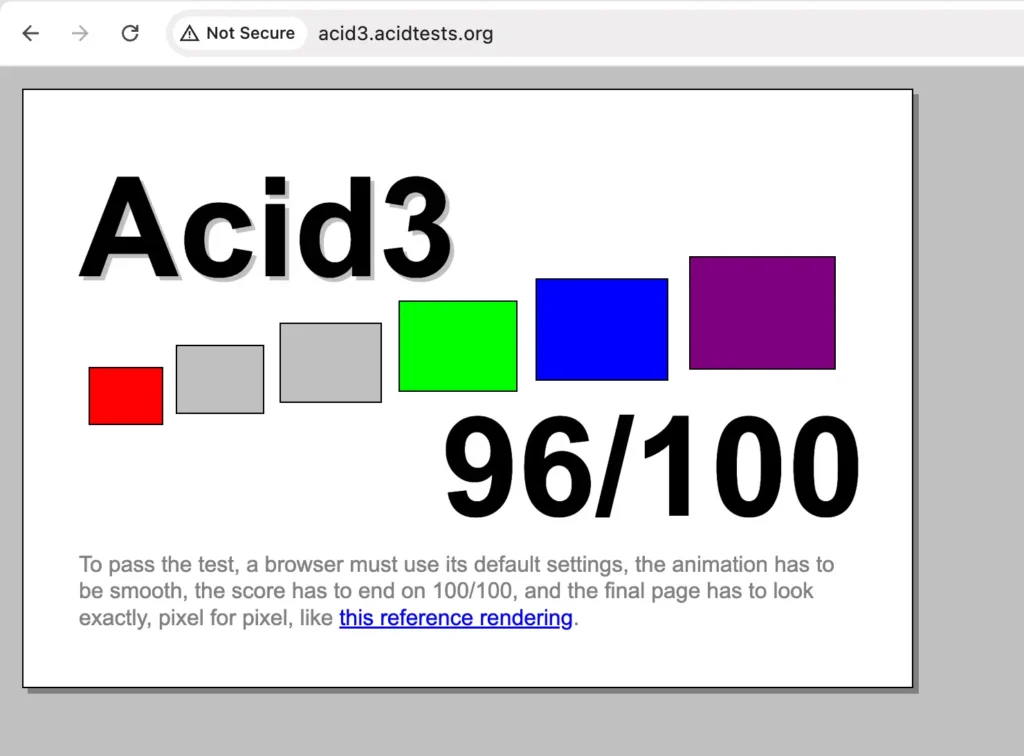
First, run the ACID3 test with all your Chrome extensions enabled. Then disable your extensions and run the test again. If the score returns to 100/100 after disabling them, it means one of your Chrome extensions is injecting JavaScript or CSS that conflicts with the test.
In that case, you will need to review and adjust the injected code in your Chrome extension to prevent the issue.
Lighthouse
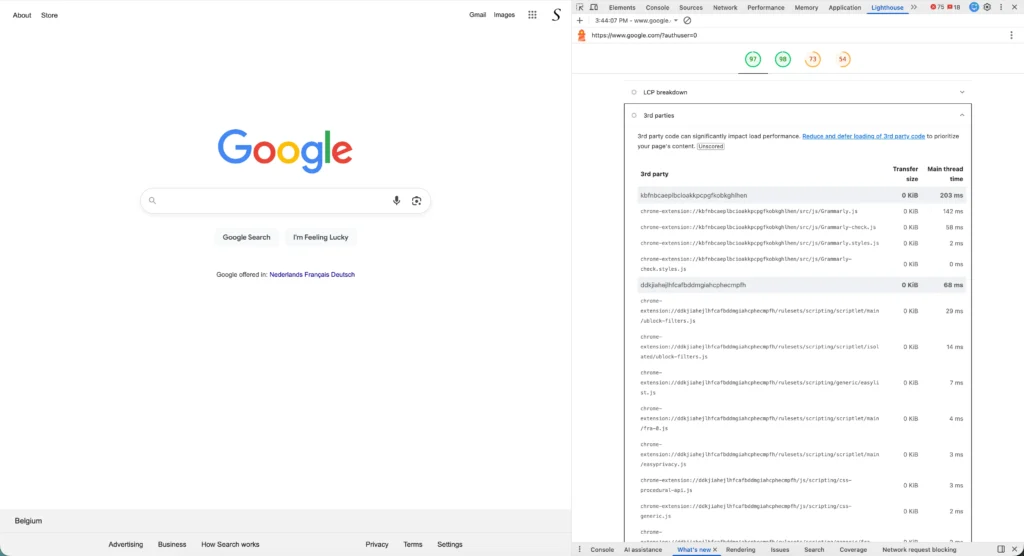
Today, we can use Google Chrome’s built-in Lighthouse tool to analyze a website’s performance. Lighthouse checks key best practices such as page speed, accessibility, SEO, and more.
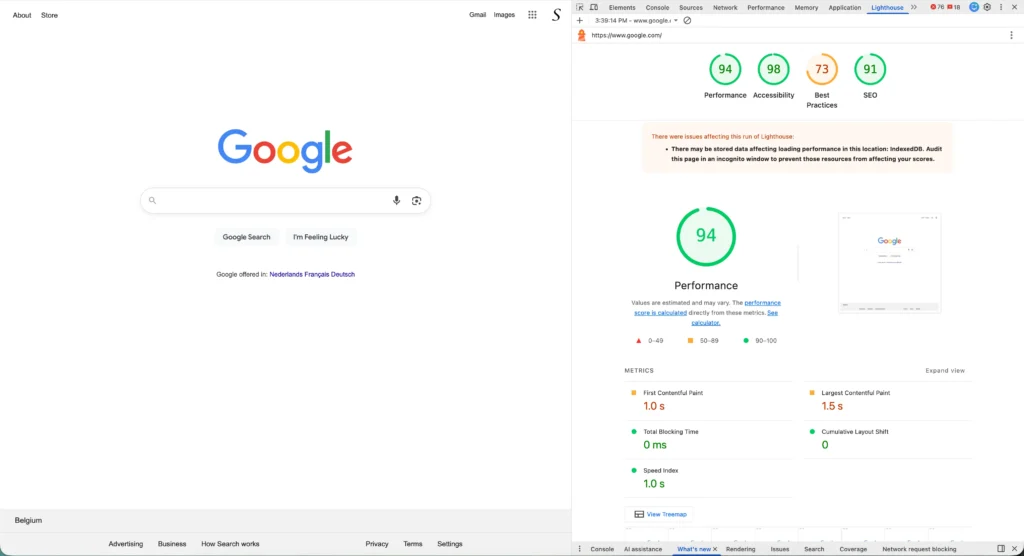
In the Performance tab, you can also see which Chrome extensions are interfering with the web page. For example, this trace shows that Grammarly (kbfnbcaeplbcioakkpcpgfkobkghlhen) causes a 203 ms delay, which leads to a longer page load time until the Chrome extension finishes executing.
Resources
- Wikipedia about the Acid3
- Microsoft developer guide about minimizing an extension’s impact on page load time
Conclusion
Reducing memory and CPU usage in a browser extension is not about cutting features, but about running code only when it truly matters. By limiting content script injection to the required websites, avoiding unnecessary file loading, and replacing constant setInterval timers with event-driven logic or chrome.alarms, you can significantly improve your browser extension’s performance.
Small changes, such as narrowing matches in your manifest.json or profiling scripts with Chrome DevTools, can have a big impact on browser responsiveness and battery life. These optimizations help your browser extension feel lightweight and reliable, especially for users who run many tabs at once.
Taking the time to optimize resource usage not only improves user experience but also builds trust. Users are far more likely to keep a browser extension installed when it behaves efficiently and respectfully in the background.
If you found this guide helpful and would like to support continued work on browser extensions and developer education, consider supporting my work. Every contribution, big or small, helps me create more practical guides like this. Thank you for your support!
