
Table of Contents
Last month, I launched all my browser extensions on the Safari web browser, now available in the Apple App Store. Building and testing them in Safari is much easier, as you no longer need to create a Mac app in Xcode. In this beginner developer guide, I will show you how to get started with Safari 26.
Making Extensions Available on All Platforms
One of the first things I do when developing a browser extension is make it available across all platforms. This includes Safari, so users can stay productive in the browser they are most comfortable with. That includes my Turn Off the Lights browser extension.
Stefan Van Damme – Developer of the Turn Off the Lights browser extension
Each friction point can take time to test the real experience in the Safari web browser. Apple now provides a new feature that makes it very easy to load a temporary Safari extension from a folder. This means you no longer need to spend time figuring out the correct structure to load an extension in the Xcode app. With a single command xcrun safari-web-extension-packager /path/to/extension, you can build your ZIP Chrome extension into a macOS and iOS application.
Load a Temporary Safari Extension Folder
Safari 26 introduces a feature similar to Google Chrome’s “Developer Mode”, allowing you to load an extension directly from a folder.
Step-by-step instructions
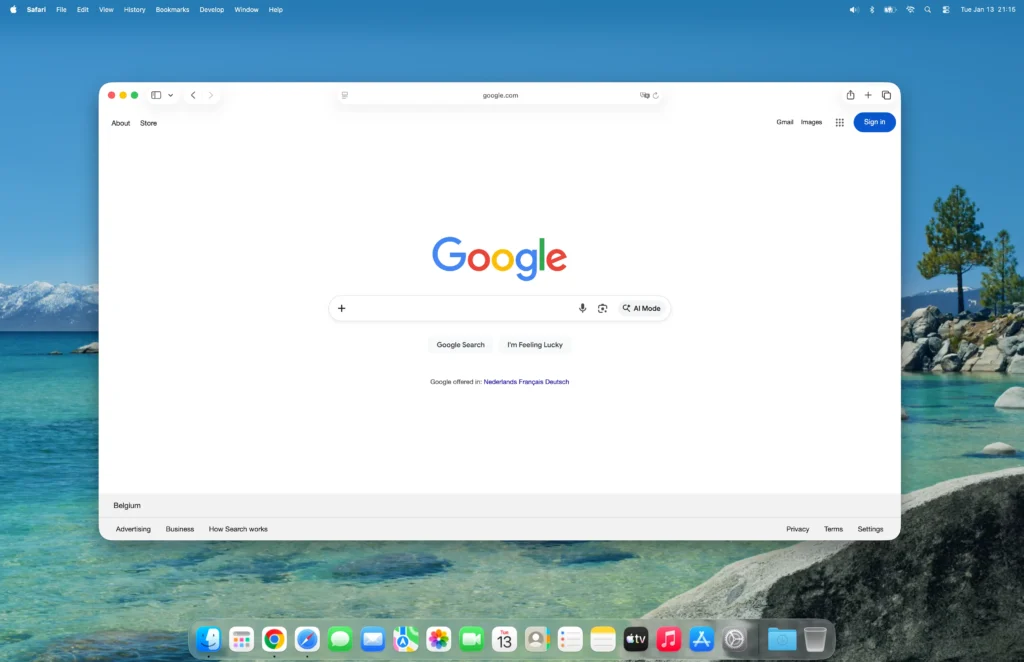
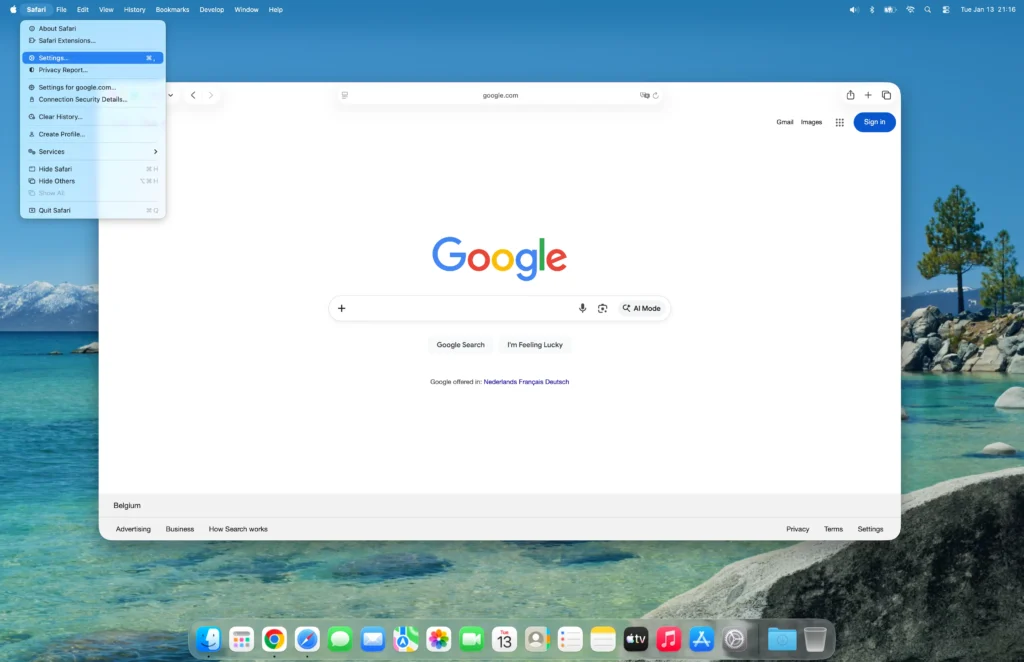
- Open your Safari web browser, and in the Apple menu bar, click on the name “Safari”. Then select “Settings…” from the menu.
- Now you will see the Safari Settings window. Click on the “Developer” tab at the top.
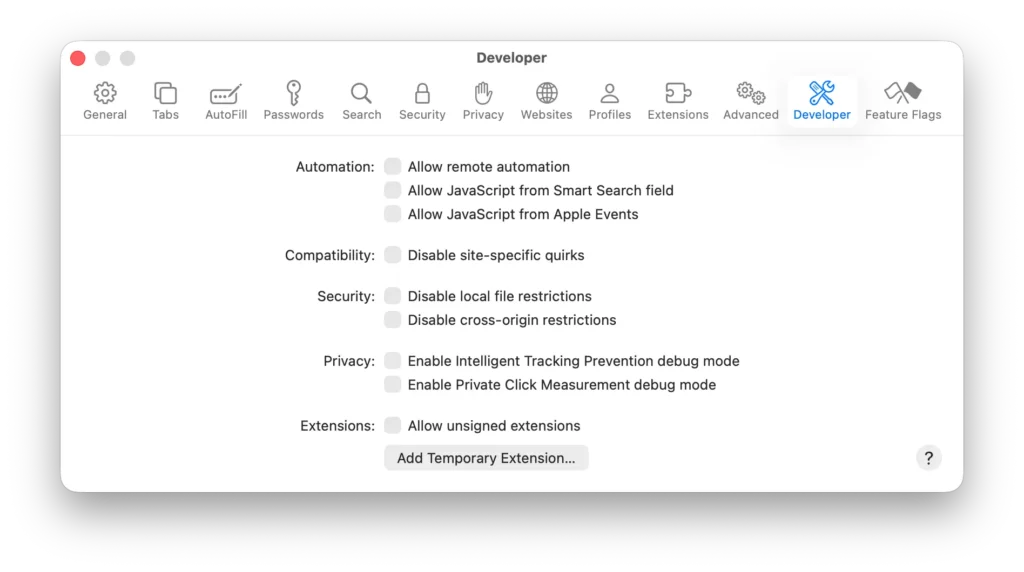
- Next, click on the gray button labeled “Add Temporary Extension…”.
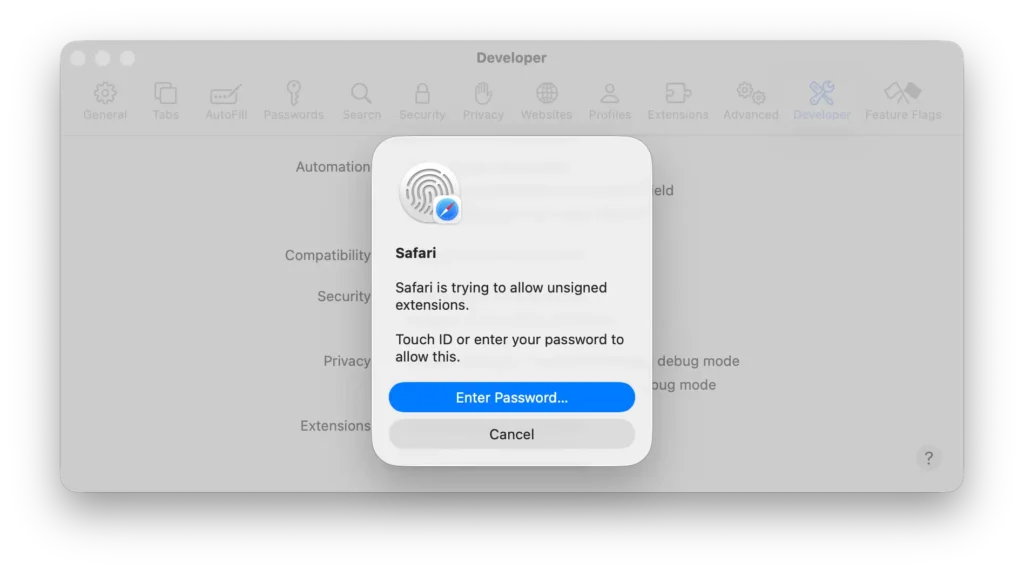
- You will be prompted to enter your Mac password or use your fingerprint to allow this change.
- A dialog window will appear, allowing you to choose the location of your Safari extension code. This should be the root folder that contains the
manifest.jsonfile. I selected my Turn Off the Lights Safari extension folder.
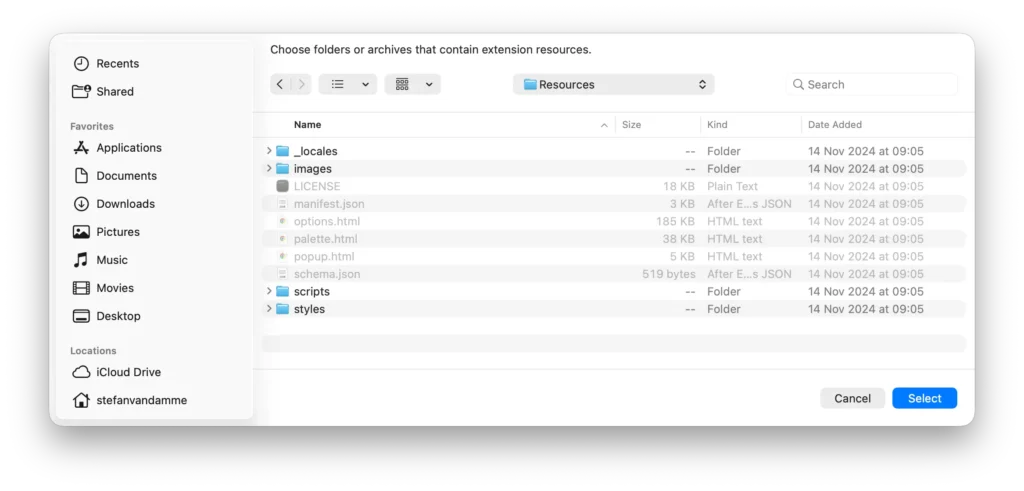
- When you are in that folder, click the blue “Select” button.
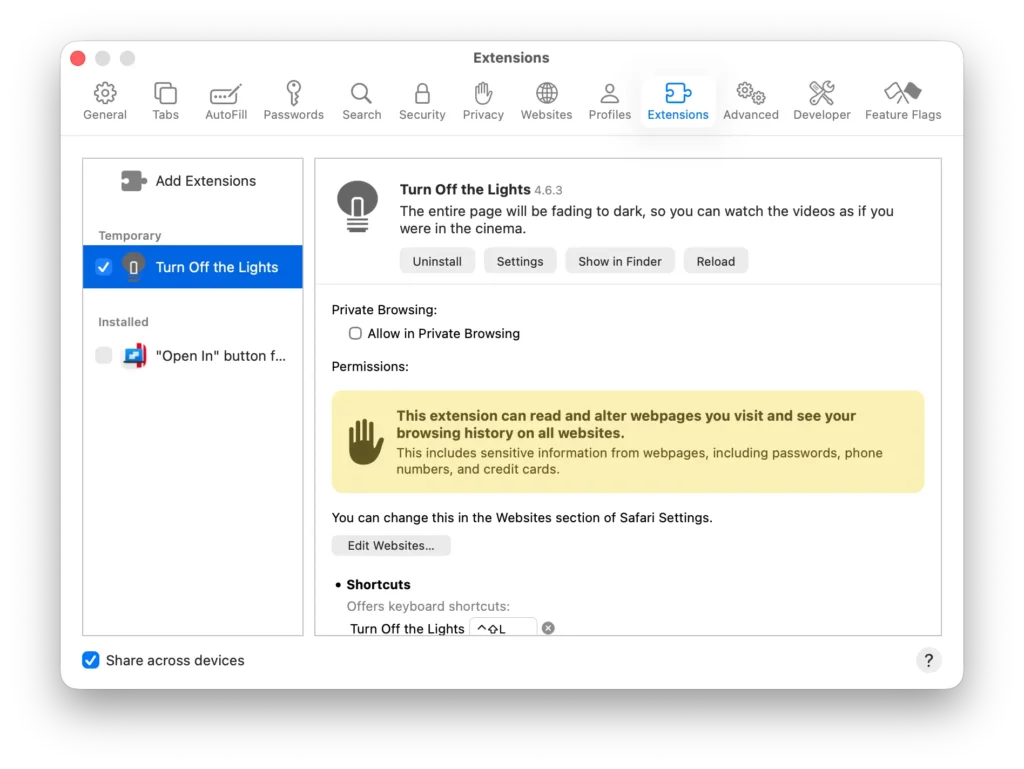
- Close the window, and you will see the Safari extension icon in the Safari toolbar. For me, this is the blue accent lamp button for Turn Off the Lights.
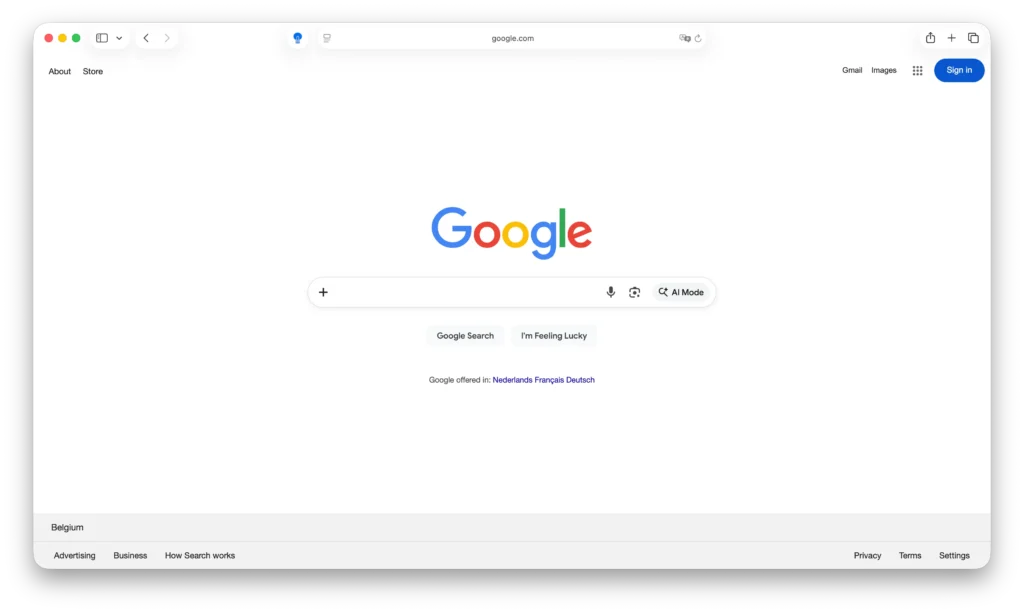
Now, when I click on the lamp button icon in the Safari toolbar, it dims the web page. There is no Mac application or Xcode running in the background.
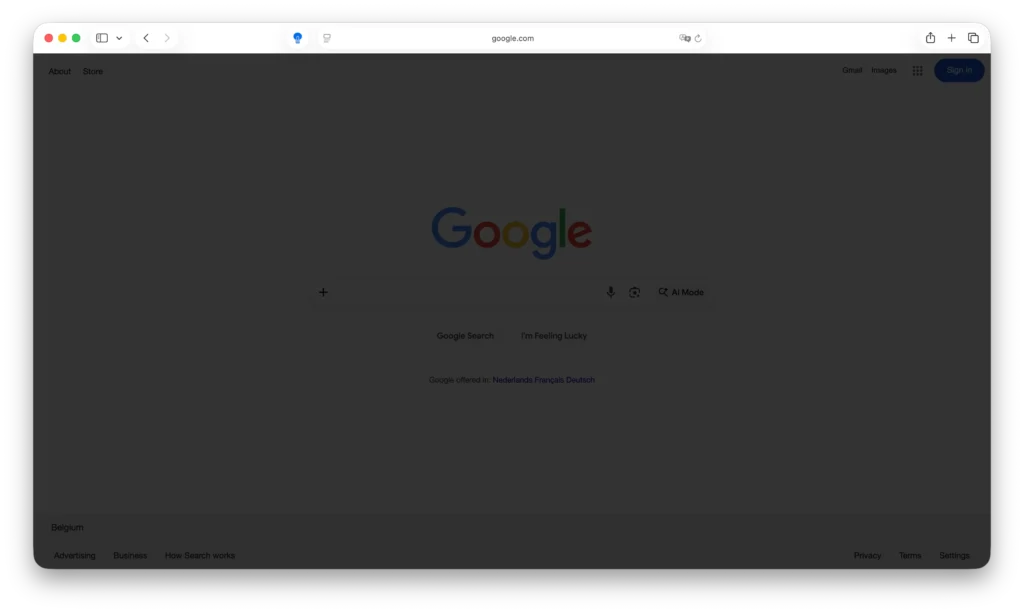
In Safari 26, you can now load browser extension code just like in Google Chrome’s developer mode. Simply browse to the folder where your manifest is located. You no longer need to create an empty app first and build it; after that, you could see it in Safari’s web browser only when running Xcode in debugging mode.
Important note: when you open that folder location as an extension, you will be asked for your computer password or fingerprint to allow this change. This is for security, to ensure that you are explicitly permitting this Safari extension to run in the Safari web browser. Also, this is temporary, which means that when you close Safari, the extension will no longer be active and is automatically unloaded. This setup is intended for developing, testing, and debugging Safari extensions, and is not meant for everyday use by non-developer users.
Customizing Keyboard Shortcuts
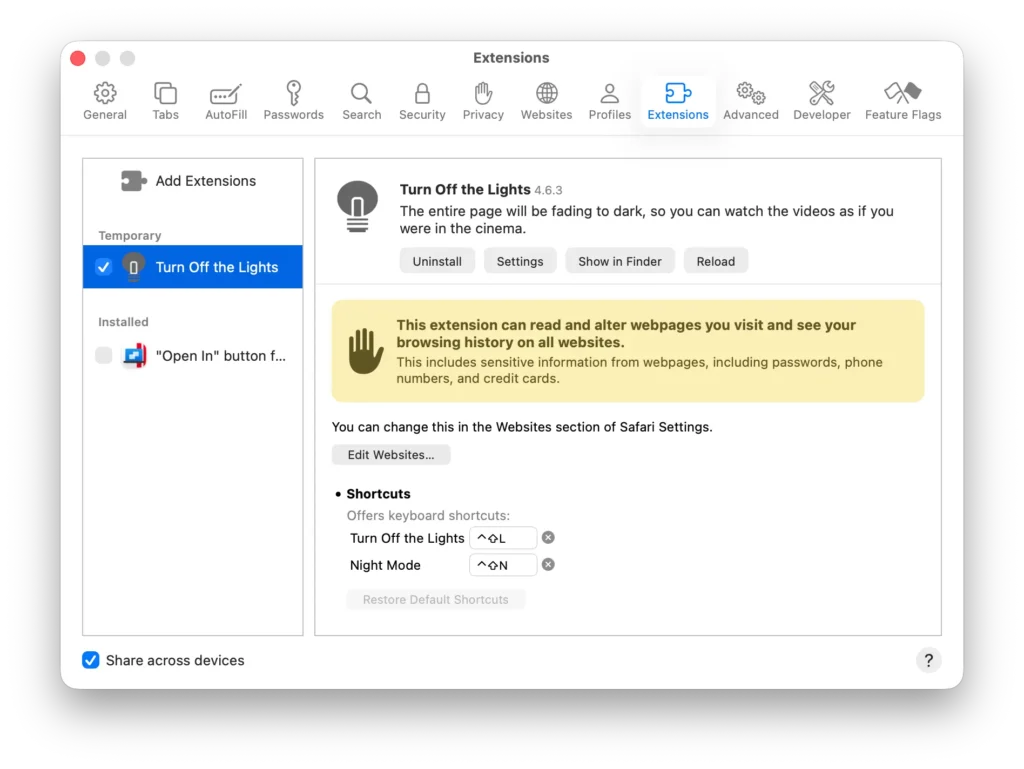
In Safari 26, you can finally customize the keyboard shortcuts you added in the manifest.json file. Reopen the Safari Extensions window, and below the selected extension, you will see a list of shortcut commands. Click inside a text field to change it to a new keyboard combination.
Problem: Safari Extensions Must Live Inside a Mac or iPhone App
If you want to distribute your Safari extension through the Apple App Store, you still need:
- A Mac app
- An iPhone or iPad app (if applicable)
Apple does not currently allow uploading a standalone ZIP file of a Safari extension to the App Store.
Troubleshooting
Sound cracking
If you hear a cracking sound on your MacBook Pro after testing a Safari extension using the iPhone 17 Pro Max simulator, run this command in Terminal:
sudo killall coreaudiodThis restarts the macOS audio service.
Background Service Worker Cannot Be Debugged
If your extension uses Manifest V3 with a background script implemented as a service worker, Safari does not allow you to open a debugging window for the background script. Expanding the Developer menu in Safari shows nothing under Service Workers or Web Extension Background Content, which is a bug. In contrast, other browsers such as Google Chrome, Microsoft Edge, Opera, and Firefox handle this correctly.
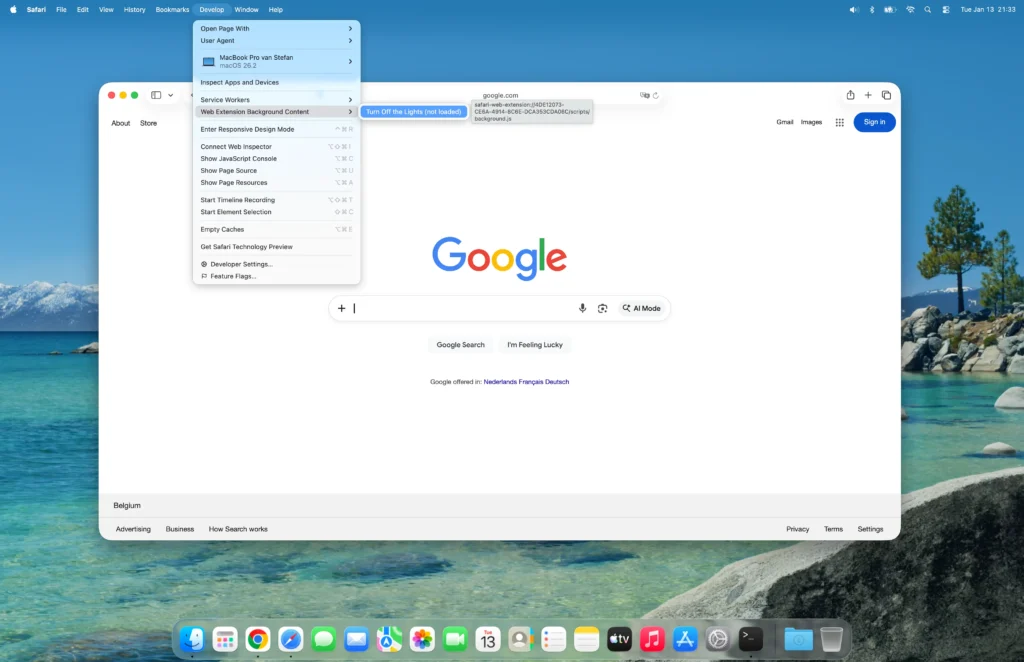
"background": {
"service_worker": "scripts/background.js"
},
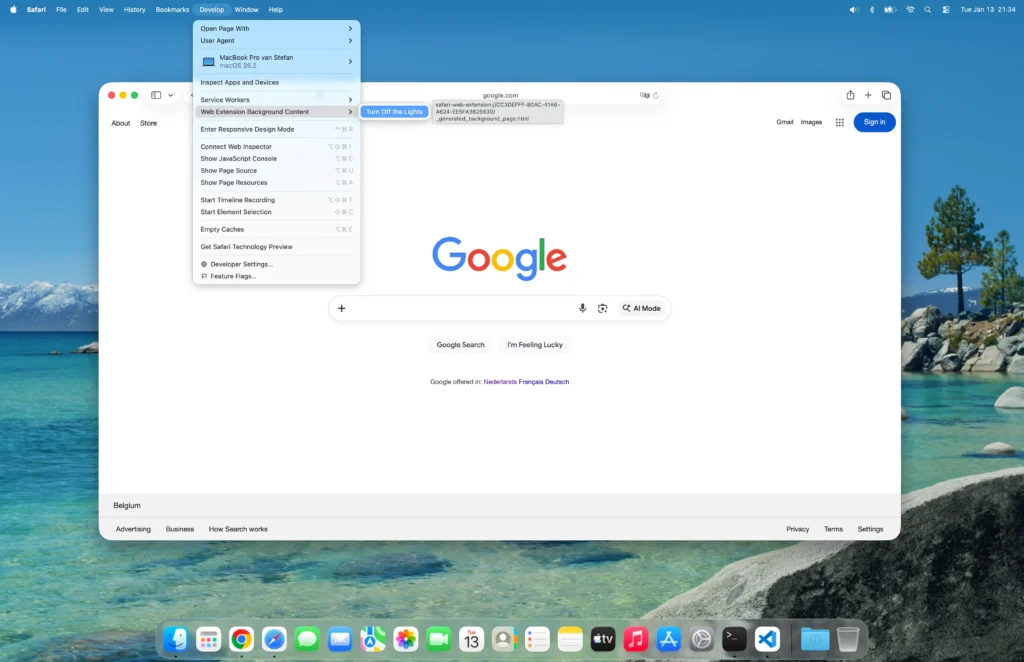
If I switch the background script back to non-persistent mode, everything works correctly.
"background": {
"scripts": ["scripts/constants.js","scripts/background.js"]
},
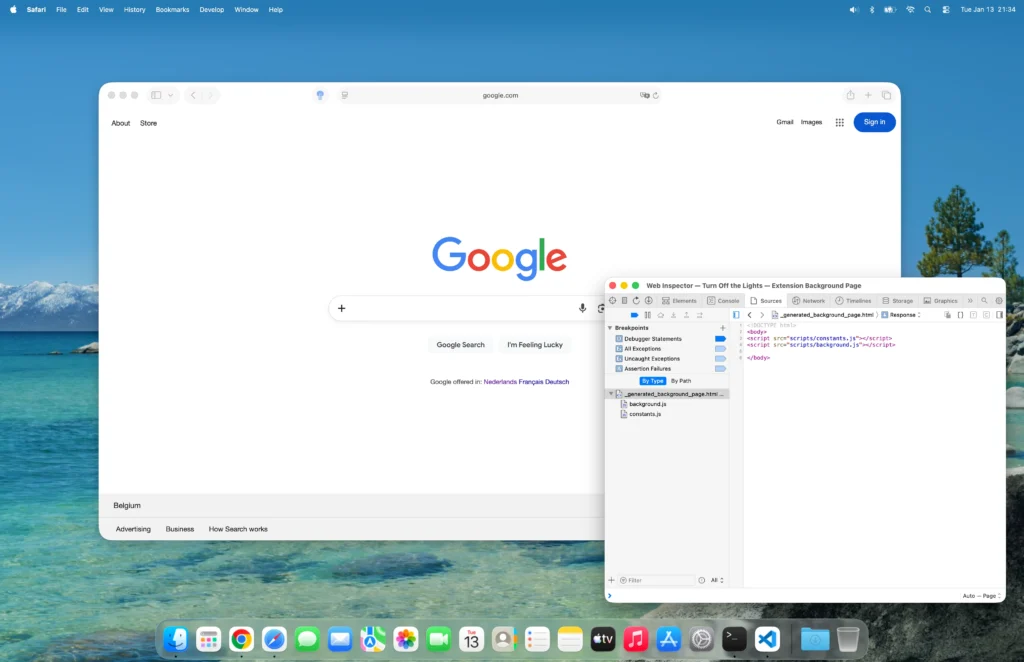
From the Developer menu, under the Web Extension Background Content submenu, I can open the background script debugging window for the Safari extension.
When you click on it, a debug window opens, showing the background script of your Safari extension in action.
Resource
Conclusion
Safari 26 makes developing Safari web extensions faster and more approachable than ever. You can now load, test, and debug extensions directly from a folder, without Xcode or a Mac app, making Safari development feel much closer to Chrome’s workflow. If you enjoyed this developer guide and want to support my work for the browser extension community, your support truly means a lot. Every donation, big or small, helps me continue creating valuable content.
