Table of Contents
Developing a browser extension should not be limited to a single platform. Today’s web runs everywhere: desktop, mobile, and even spatial computing. As browser extension developers, it is time to ensure our work delivers a great experience on mobile browsers as well. This includes my most popular Turn Off the Lights browser extension, which is available on all platforms, including Firefox for Android.
In this guide, I will show you how to take an existing desktop browser extension and run it locally in Firefox for Android. You will learn how to set up the development environment, launch your extension on an Android emulator, and debug it using Firefox’s developer tools.
This article is written for developers who already have a working browser extension and want to expand support to mobile.
Development Environment
To run Firefox for Android locally, I will use an Android emulator. This requires Android Studio, which is available on macOS, Windows, and Linux. The steps below are shown on macOS, but the workflow is the same on Windows.
Install Android Studio
- Download and install Android Studio from the official Android Developer website.
- When you have Android Studio installed on your computer. Launch Android Studio and click New Project.
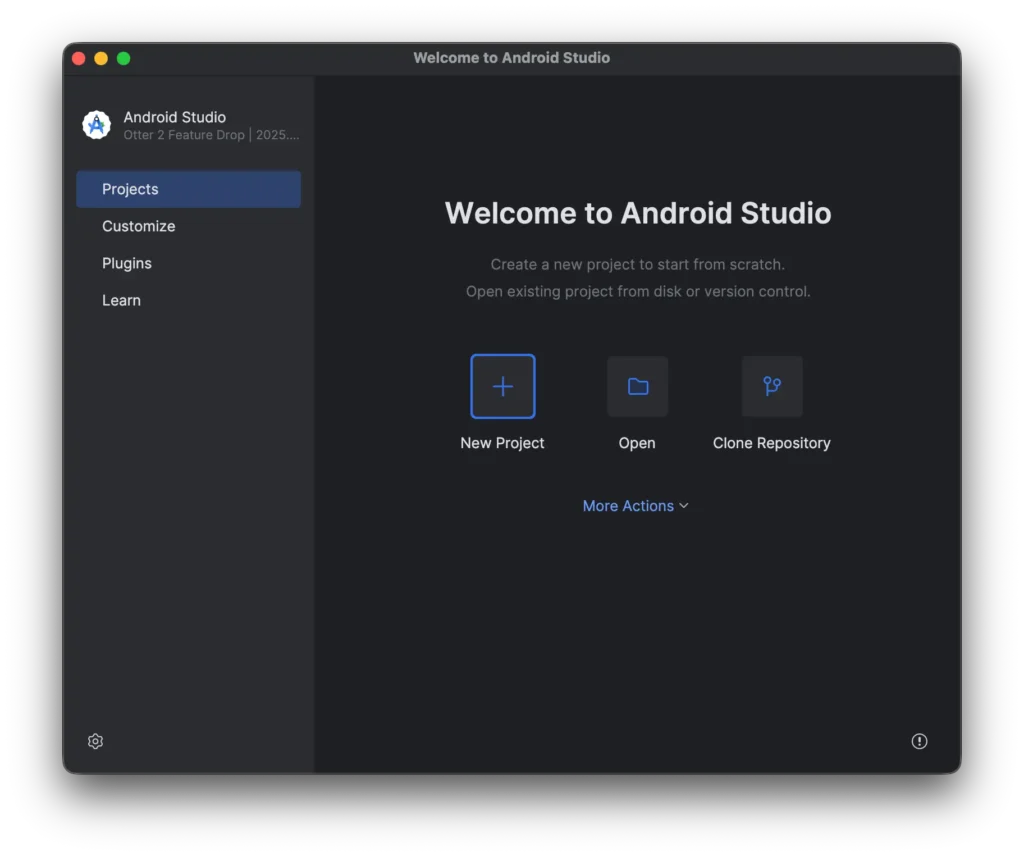
- Select No Activity, then click Next.
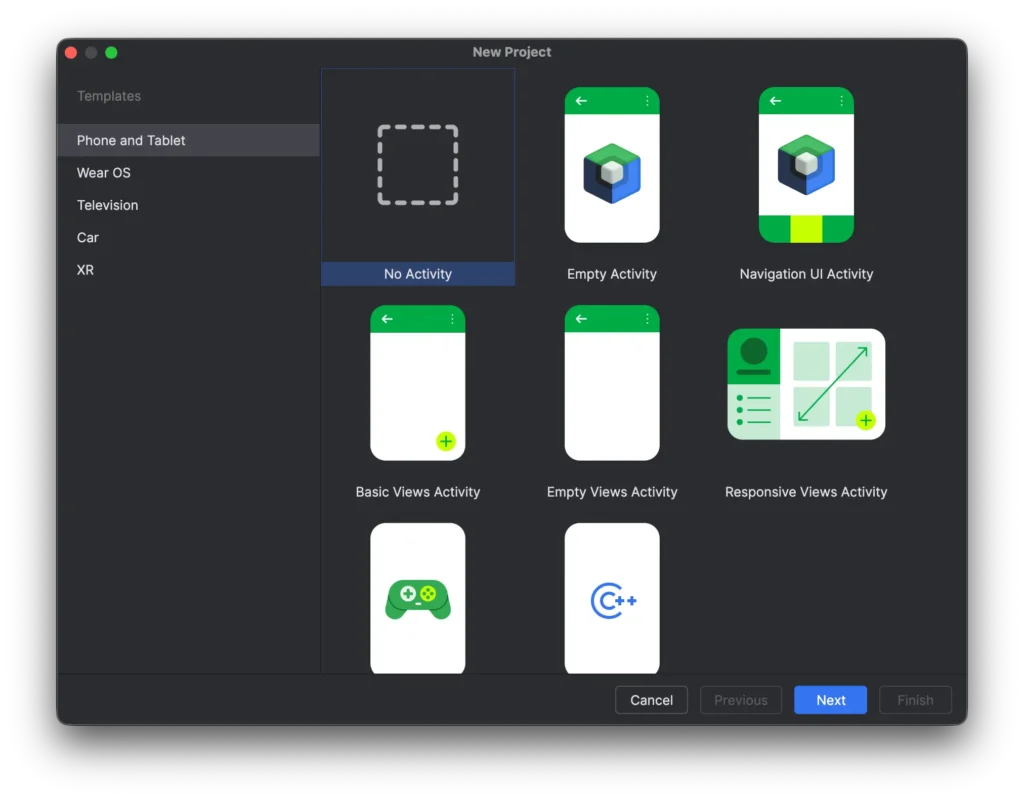
- Choose a project name (you can keep the default, “My Application”). Keep the other values, such as the package name and language, set to Kotlin, since we only need a running emulator and do not intend to build an Android app.
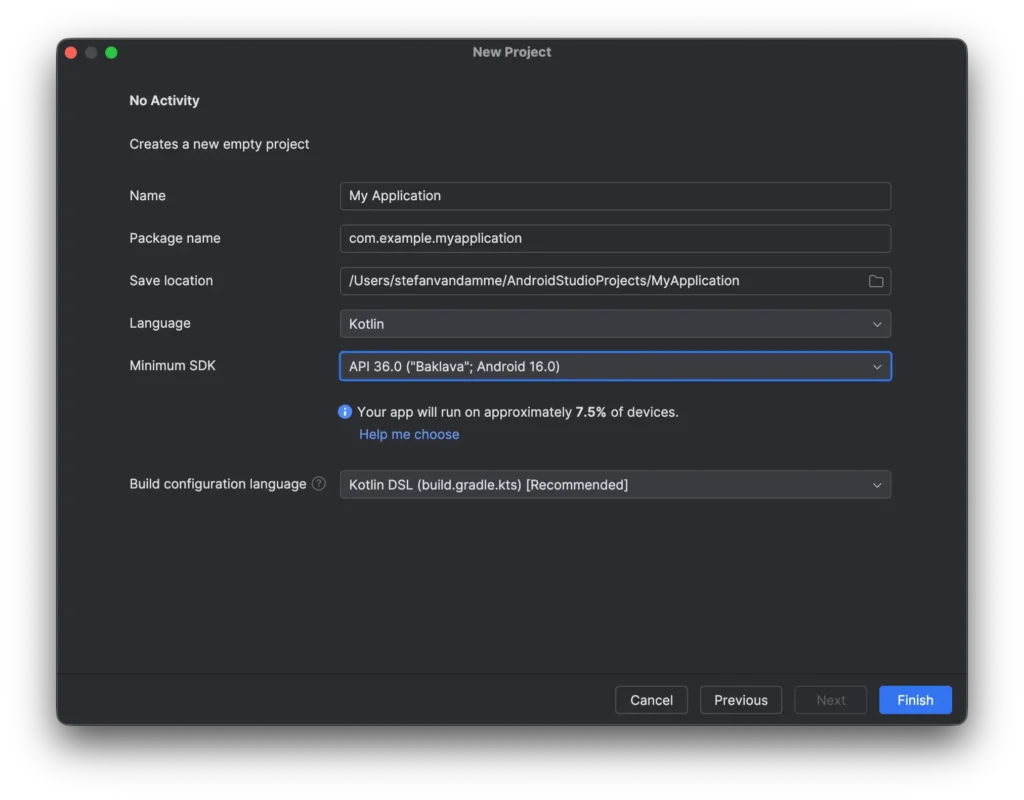
- Set the Minimum SDK to a recent Android version (use the latest available that is now Android 16.0).
- Click Finish and wait for the project to initialize.
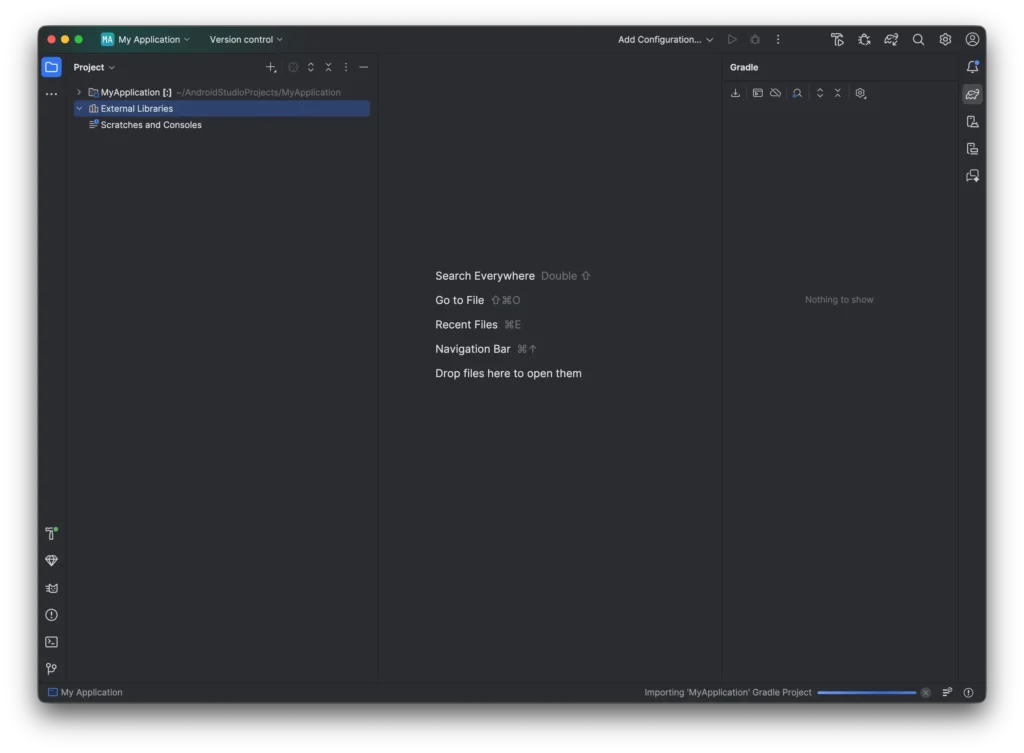
Start the Android Emulator
- Open the Device Manager from the right sidebar (the phone icon).
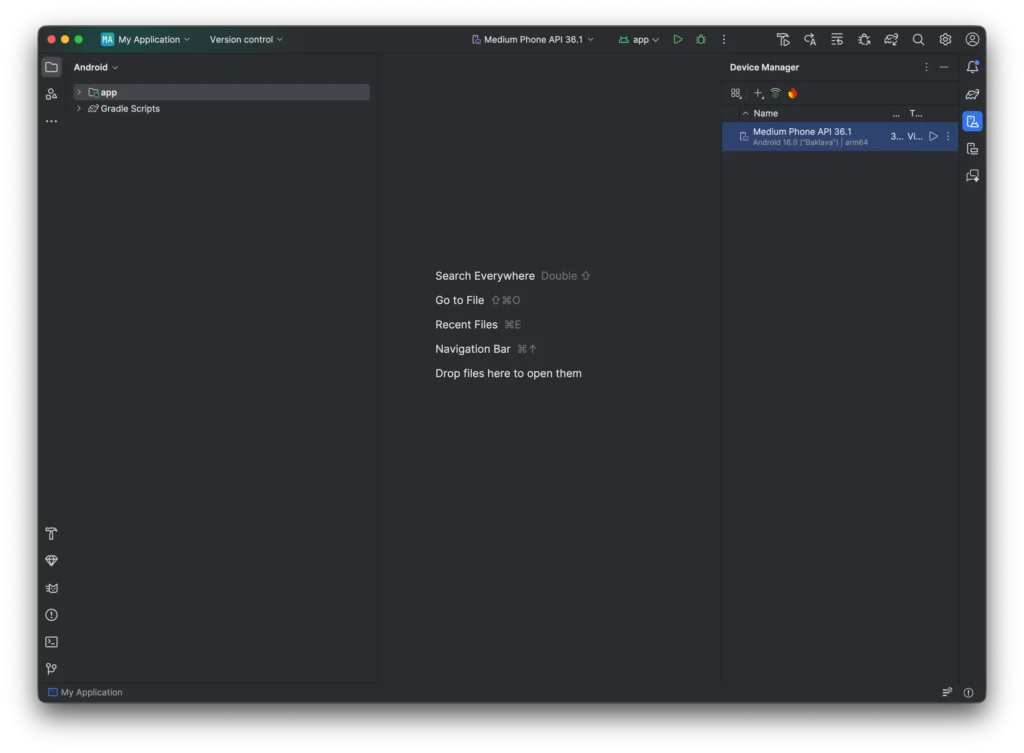
- In the Device Manager list, locate “Medium Phone API 36.1” and click the Play button (to the left of the three-dot icon).
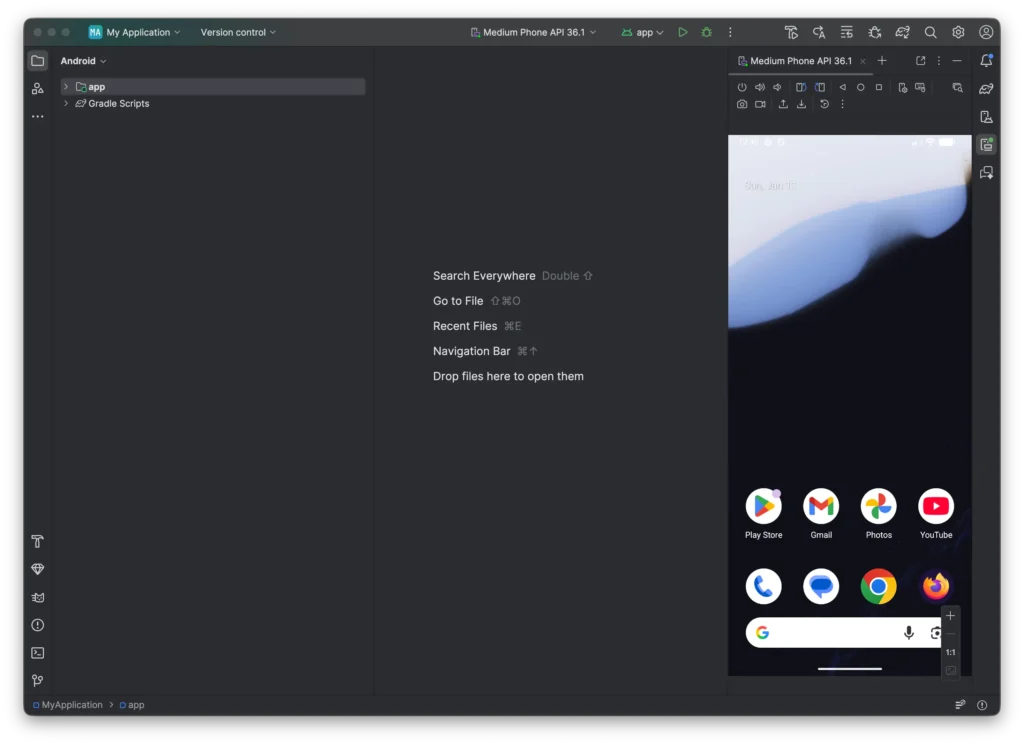
- (Optional but recommended) It can be inconvenient to keep the full Android Studio window visible. You can move the emulator outside of Android Studio. Open the Settings window, navigate to Tools, and uncheck “Launch in the Running Devices tool window”.
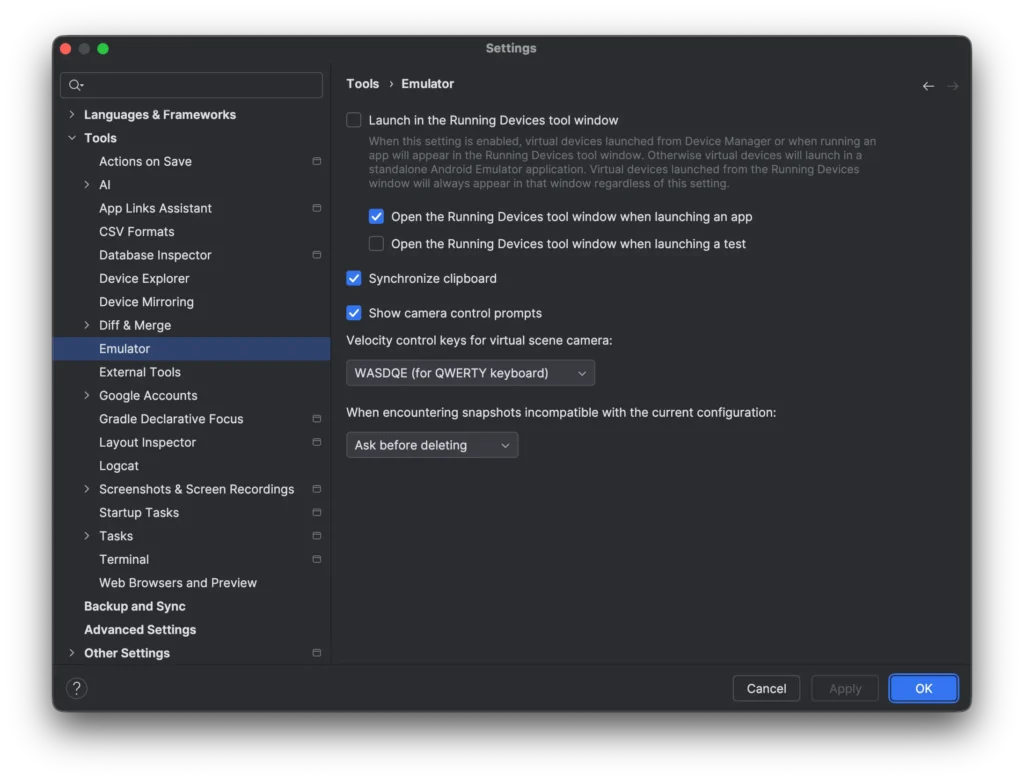
Now the Android Emulator window runs outside of the Android Studio app. You can place it anywhere on your screen or even side by side, with Visual Studio Code on the left side and the Android Emulator on the right side.
Install Firefox for Android
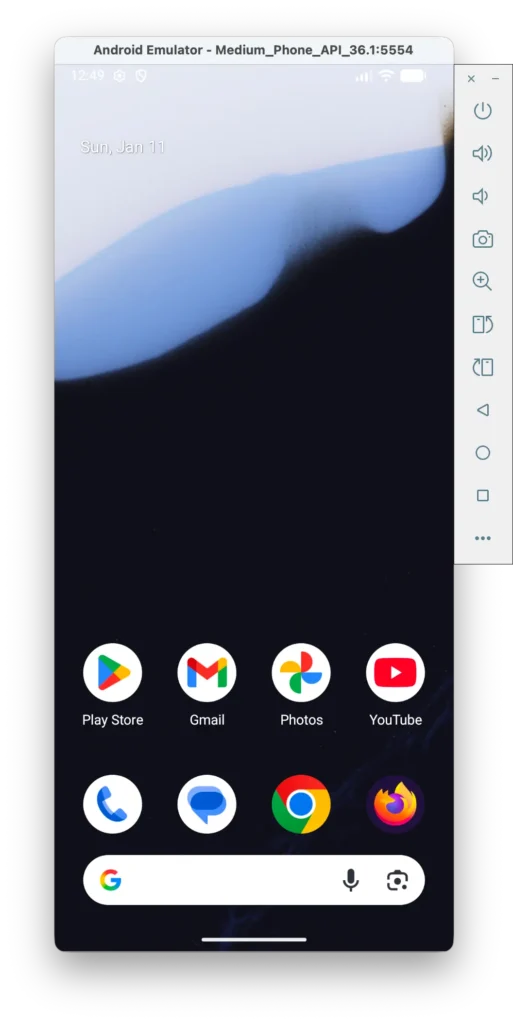
Now you need to install the Firefox web browser from the Google Play Store. I have already installed the latest stable version of Firefox on my emulator. The stable version is what most users use, so you will see the same experience as regular users. Of course, you can also install Firefox Beta or Firefox Nightly if you want a broader developer experience, including testing permissions and observing update behavior.
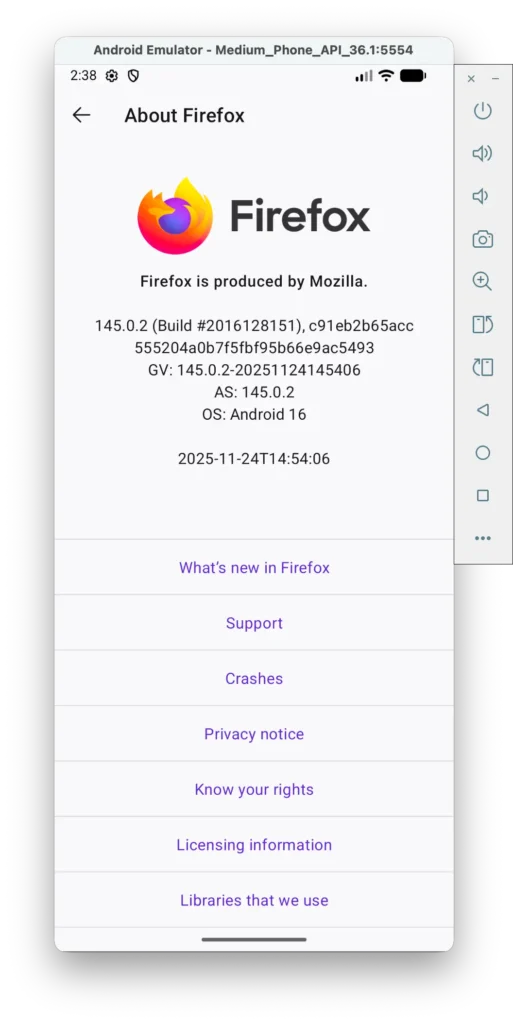
Enable Remote Debugging
- When the stable Firefox for Android web browser is installed on your device, open the app.
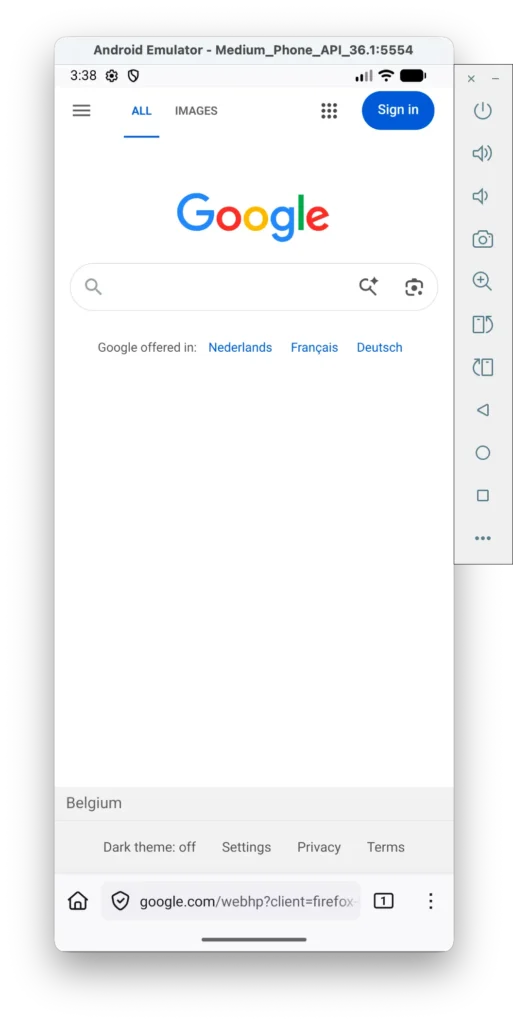
- Tap the three-dot menu and select the menu item Settings.
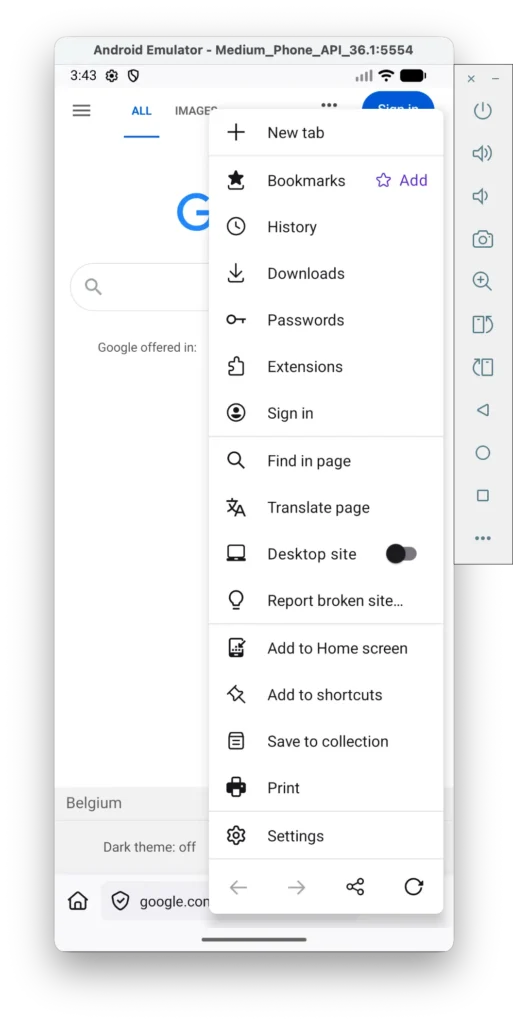
- Scroll to the bottom.
- Enable Remote debugging via USB.
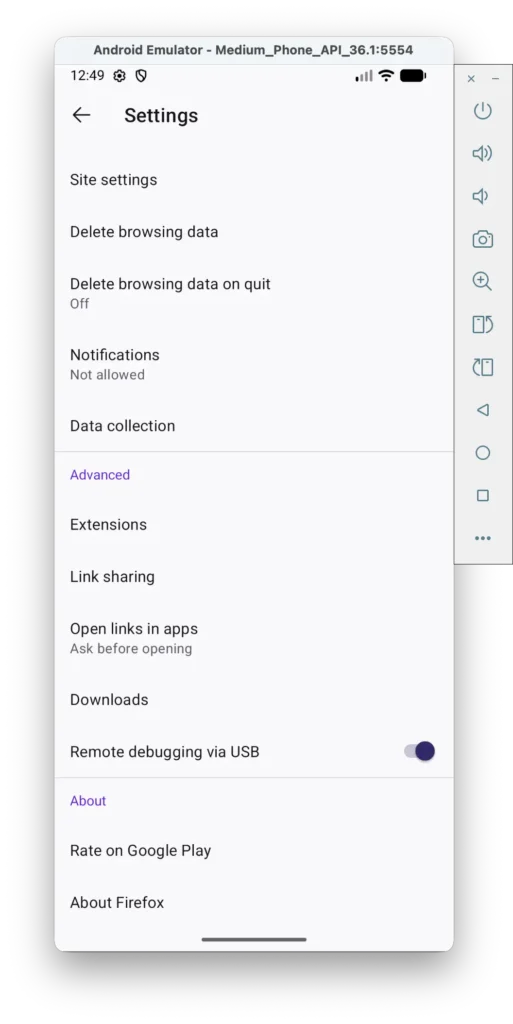
This allows Firefox Desktop on your Mac and Windows computer to connect to Firefox Android.
Required Tools on Your Computer
Now we need some libraries on your computer to run this browser extension on your Android emulator.
Android Platform Tools (ADB)
- Now open your Terminal on macOS. On Windows, open the Command Prompt.
- Type this command to install the Android SDK Platform Tools:
brew install --cask android-platform-tools- Next, type this command to see the currently active emulator on your computer. This is needed so the tested browser extension can be sent to the correct emulator ID.
adb devices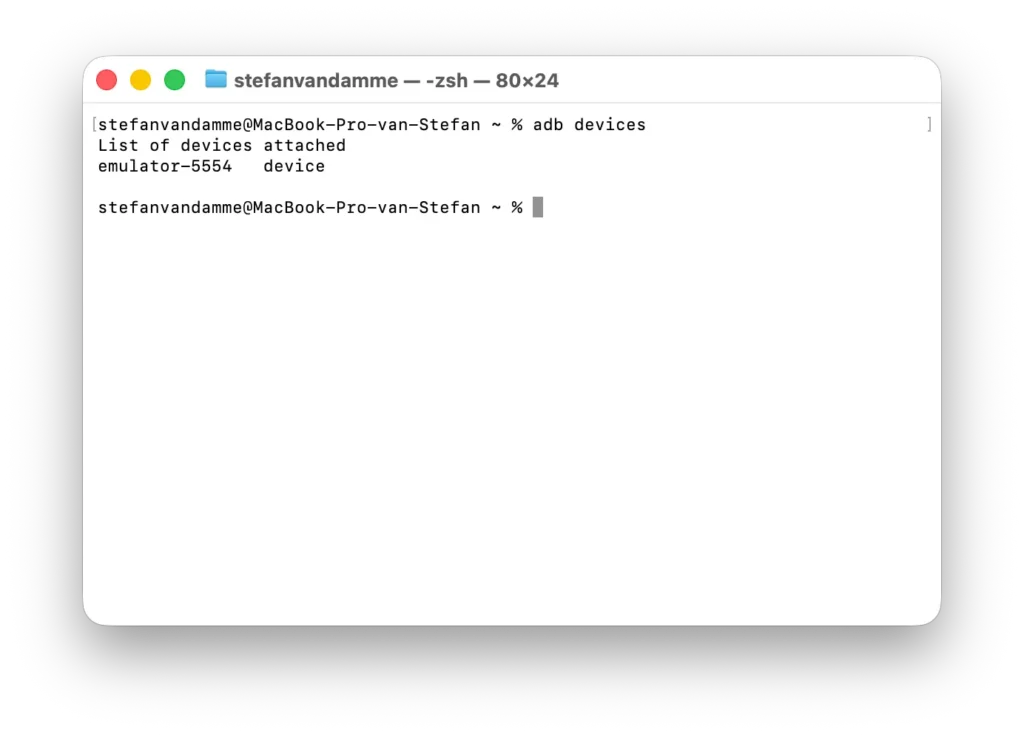
- Finally, install this Node-based application, a command-line tool to help build, run, and test web extensions:
brew install web-ext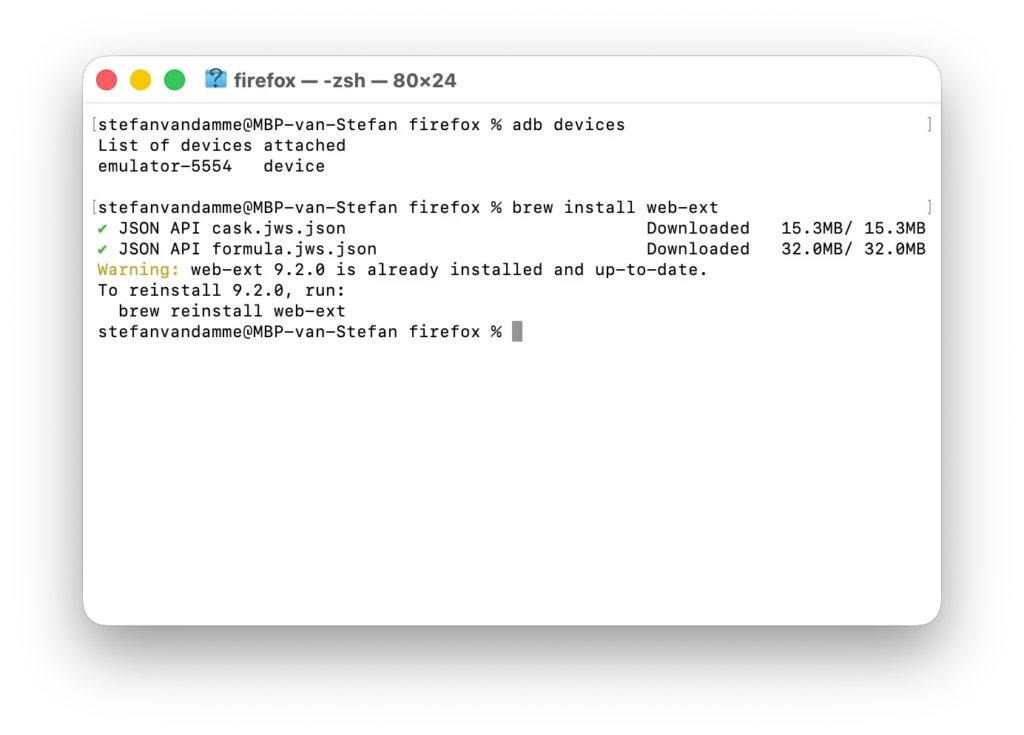
Open Firefox Desktop Debugging Tools
- Open your desktop Firefox web browser and go to about:debugging.
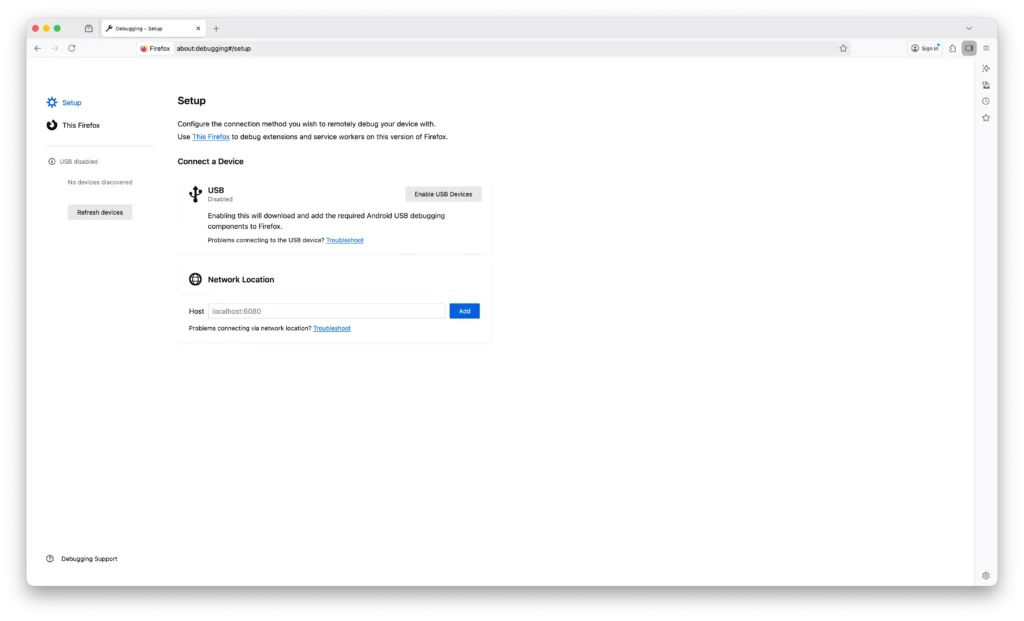
- Click on the gray button “Enable USB Devices“.
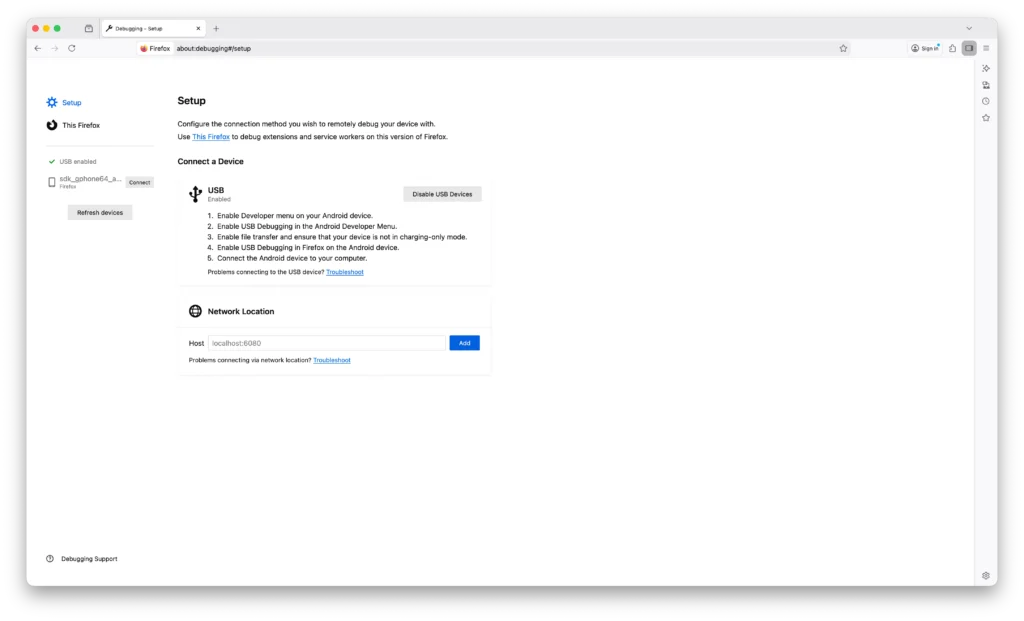
- Now you will see a list of active emulators on the right side, where you can click Connect. This allows your current Firefox web browser to debug that specific page, such as your background service worker or even the current web page in that Firefox for Android tab.
Navigate to Your Extension Directory
Now the necessary library is installed. Open your Terminal and navigate to the folder where the manifest.json file of your browser extension is located. Do this by typing cd followed by a space, then drag the folder into the Terminal and press the Enter key.
cd /Users/stefanvandamme/Documents/GitHub/Turn-Off-the-Lights-browser-extension/dist/firefoxRun the Extension on Firefox Android
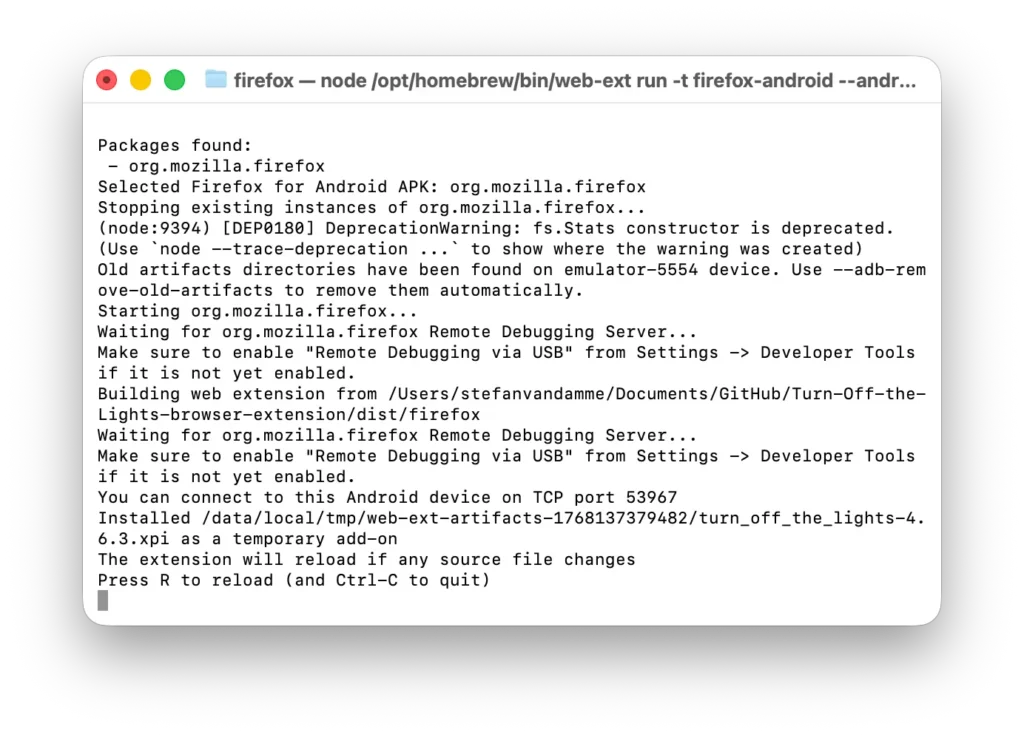
Now, in the folder where your source browser extension is located, run it on mobile by typing:
web-ext run -t firefox-androidIf needed, add the --android-device option with the emulator name shown on your computer. For me, that is emulator-5554.
The full command you need to type in the Terminal window is:
web-ext run -t firefox-android --android-device=emulator-5554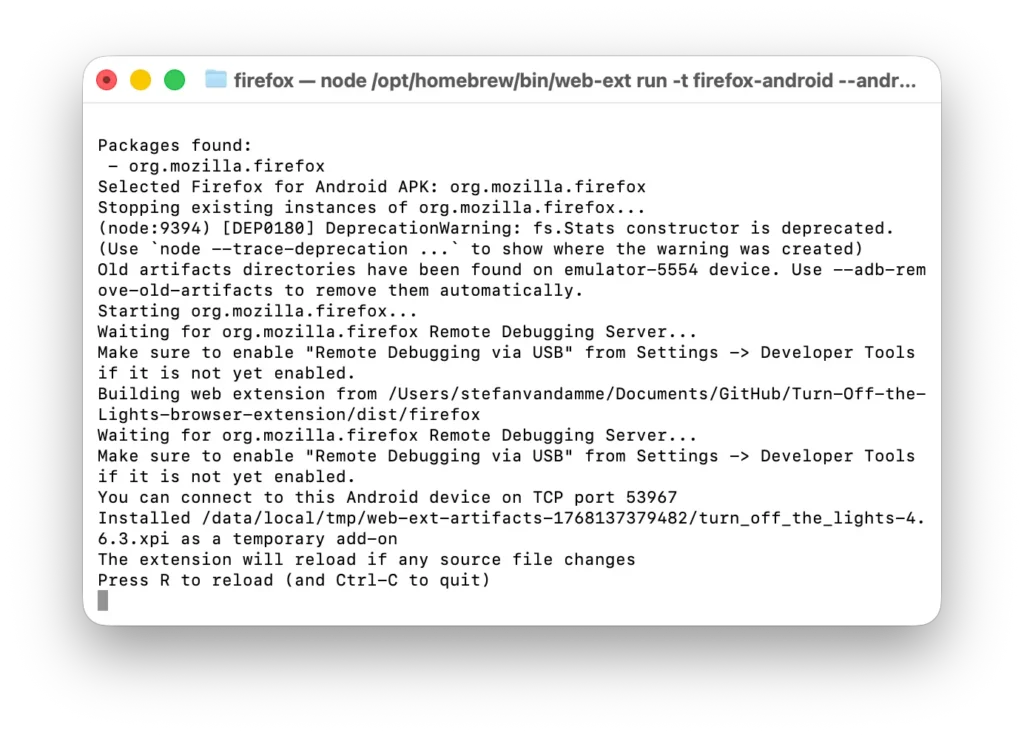
Firefox Android will prompt you to allow a temporary extension installation. Tap OK.
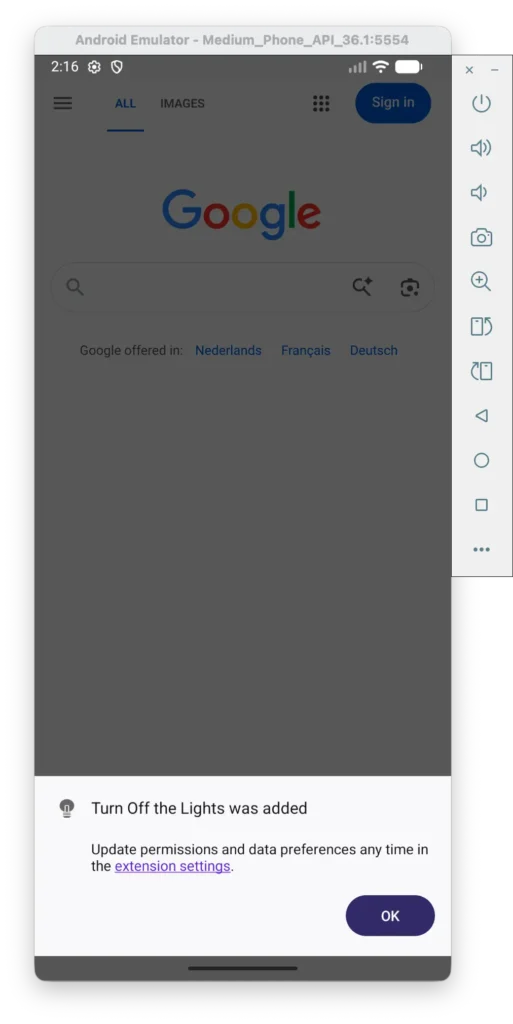
Your extension will now appear in:
Three-dot menu and in the “Extensions” menu item.
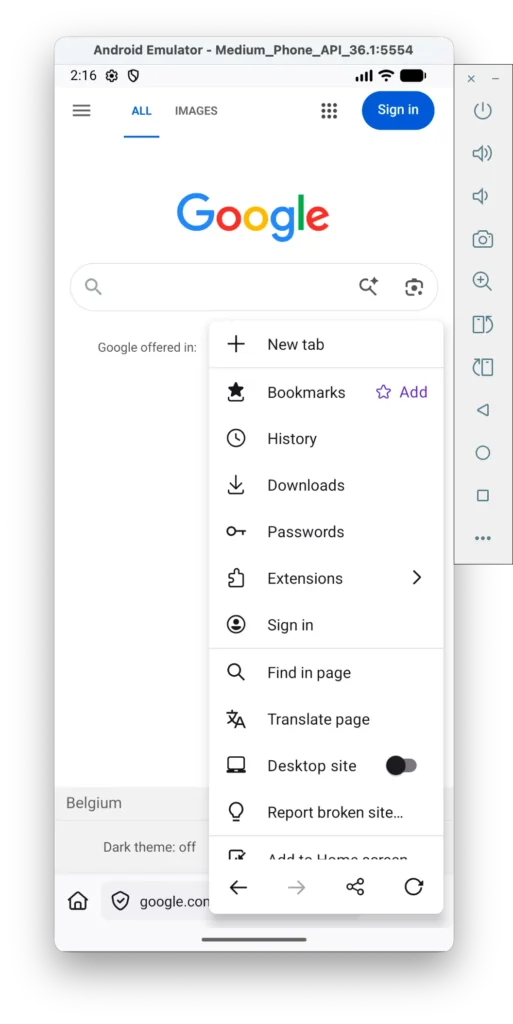
Next, tap on “Turn Off the Lights” menu item.
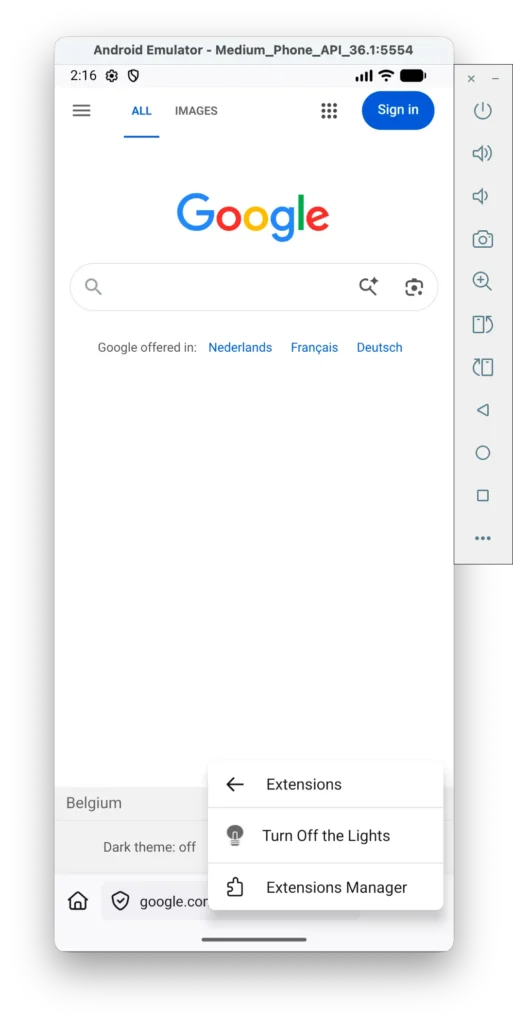
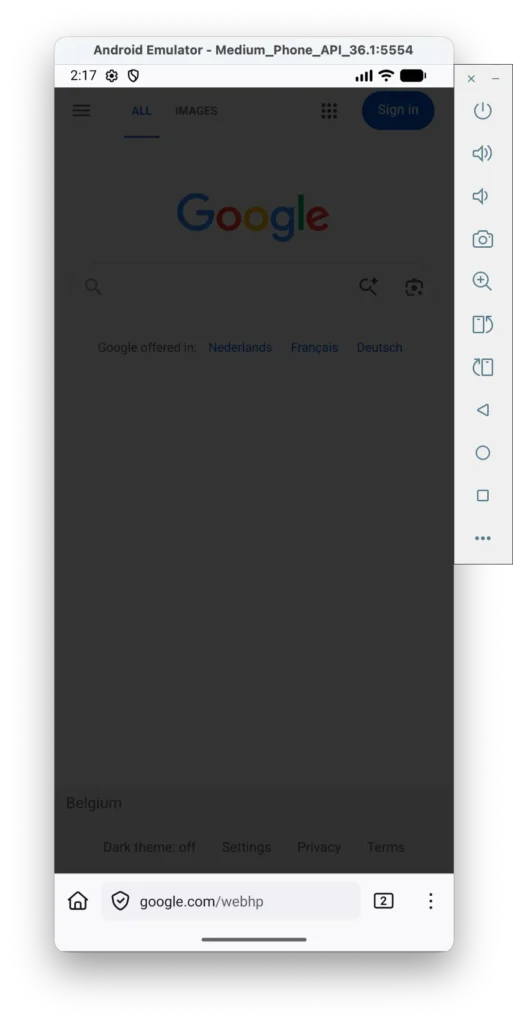
With a single tap on the Turn Off the Lights menu item, the web page will fade to a transparent black layer with 80% opacity, which is the default value when you install the extension for the first time.
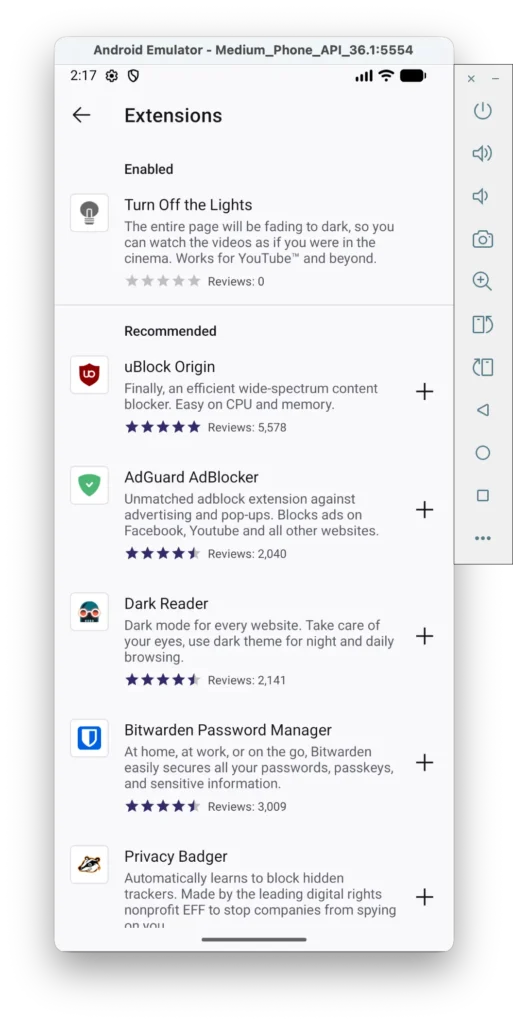
When you open the three-dot menu and go to the Extensions menu item, tap on Extensions Manager. You will then see the complete list of installed extensions, along with suggestions for extensions you can install on your Android device.
Tap on the name Turn Off the Lights to open a new page where you can enable the Firefox extension, allow it in private browsing, view details, check permissions, and access the Settings page.
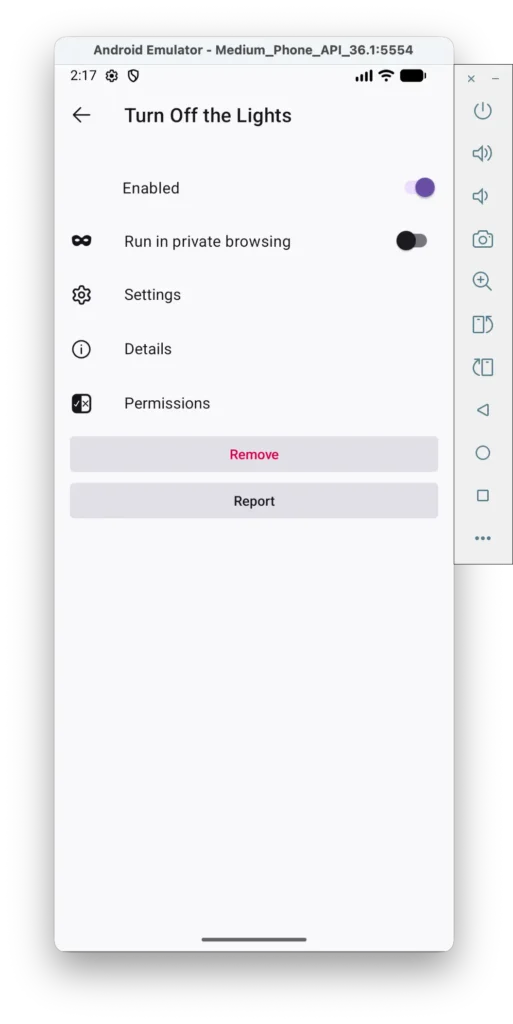
Tap on Settings, and it will open the Turn Off the Lights Options page.
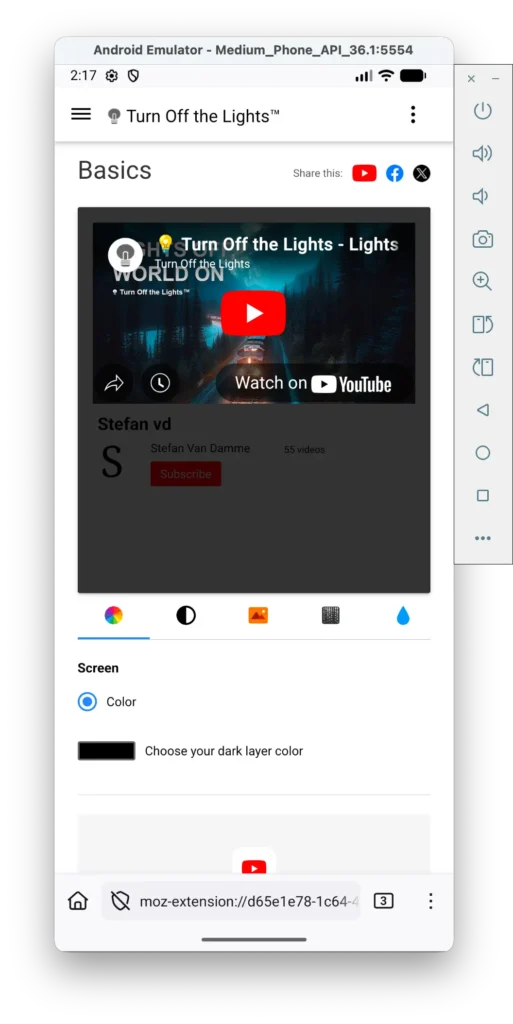
Debugging Firefox Extensions on Android
- Open your Firefox desktop web browser on the left side of your screen, and place your running Android emulator on the right side.
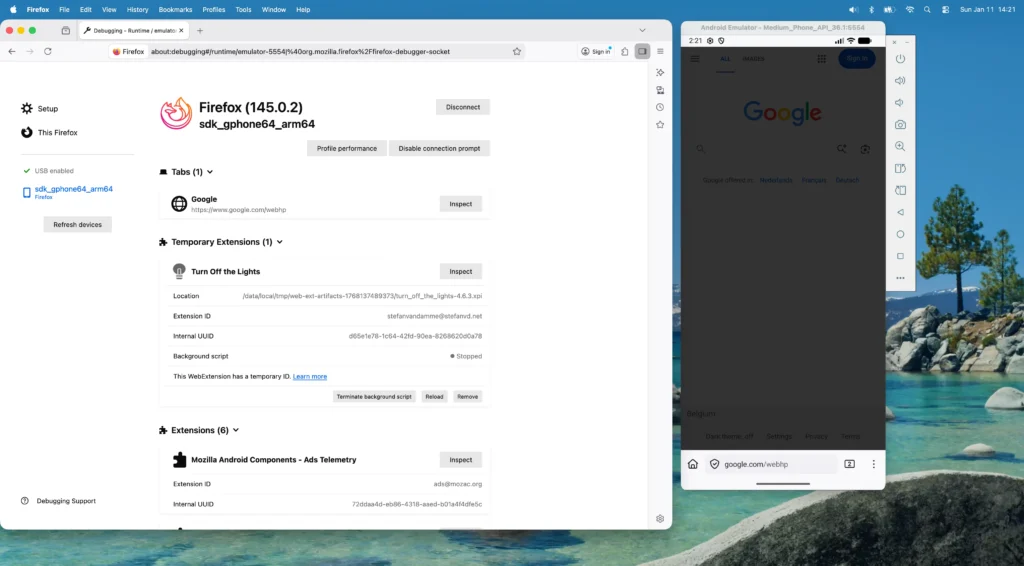
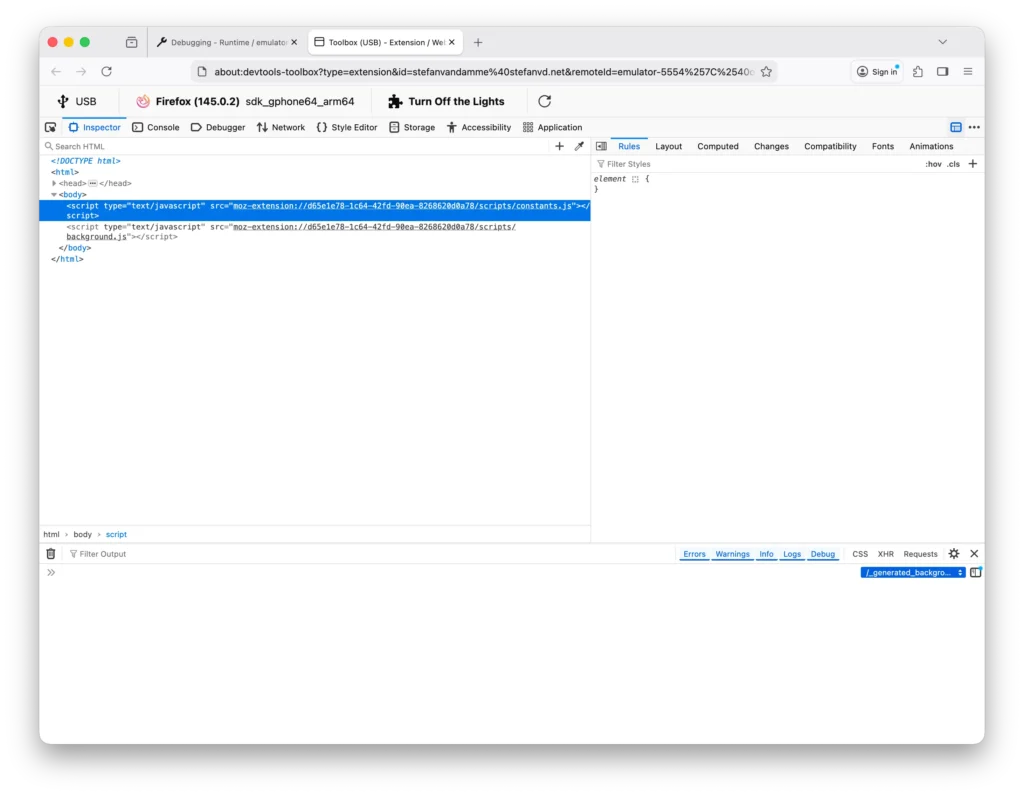
- When you click on the active device name sdk_gphone64_arm64, you will see a list of items that you can inspect, such as your temporary extension Turn Off the Lights. Clicking the gray Inspect button will open the inspection view for the background service worker.
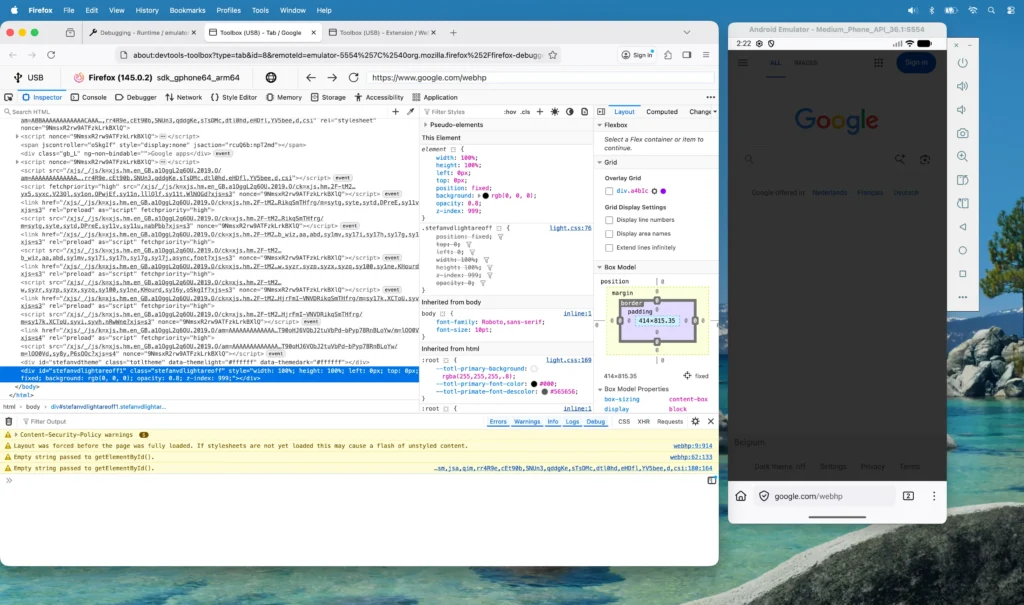
You can also debug the currently active tab in Firefox for Android. Right-click on the Google tab name and click the gray Inspect button. You will see the complete DOM of that web page, and below, you can observe the stefanvd dimmed layer applied to the page.
To quit debugging on your Android emulator, press Ctrl + C on your keyboard. This will end the process.
Build a ZIP Package
When you are ready to distribute or upload your extension to the Firefox Add-ons Gallery, use the following command to build it as a ZIP file:
web-ext build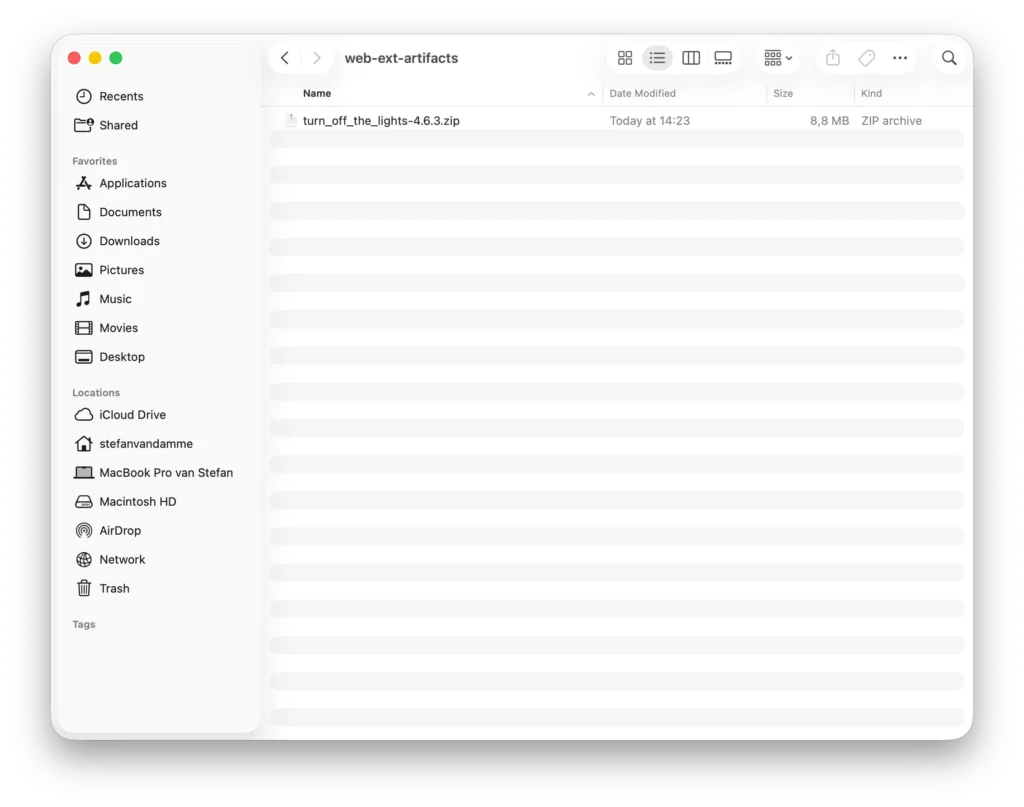
Linting and Building Your Extension
To check for errors, you can type the following command in your Terminal window:
web-ext lint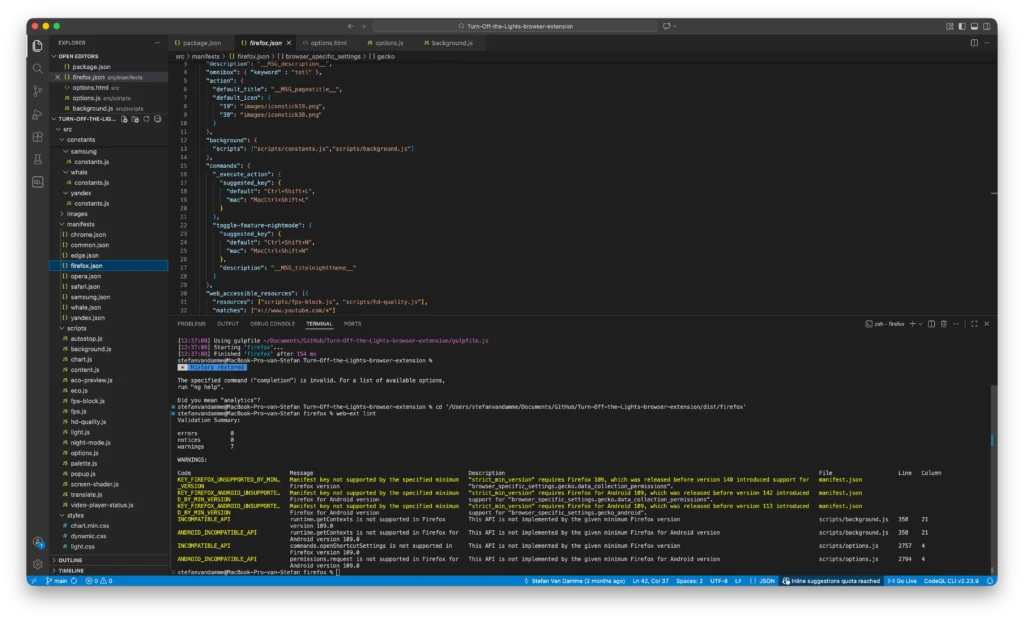
Troubleshooting
If you see a message about old ADB artifacts, try running this command to clean the folder.
adb shell rm -f -rR -v /sdcard/Documents/Recursively and permanently deletes the entire /sdcard/Documents/ folder and all its contents on the connected Android device, printing each deletion as it happens without any confirmation, and then restarts the process.
web-ext run -t firefox-android --android-device=emulator-5554Resources
To further explore the development of the mobile Firefox for Android extension:
- Download the Android Studio application
- Developing extensions for Firefox for Android
- Choose a Firefox version for web extension development
- GitHub Mozilla web-ext
- Getting started with web-ext
Conclusion
You now know how to run, test, and debug an existing browser extension in Firefox for Android like a pro. This workflow allows you to improve usability, performance, and reliability on mobile devices, where more users are browsing every day.
By supporting mobile platforms, you are not just extending compatibility, you are delivering a better experience for your users everywhere.
If you found this guide useful and would like to support continued work on browser extensions and developer education, consider supporting my work. Every donation, big or small, makes a huge difference. Thank you for helping me continue this important work!
