Table of Contents
How to Show iPhone and iPad Battery Levels in Windows
If you use an iPhone or iPad alongside a Windows PC, you may want an easy way to monitor your devices without constantly picking up your phone or tablet. In this guide, we explain how to show iPhone and iPad battery levels in Windows 11 with the Battery Meter Windows 11 app and Windows 11 widget.
Can You Show iPhone and iPad Battery Levels in Windows?
Windows does not currently provide a simple built-in feature that automatically displays the battery percentage of an iPhone or iPad inside the Windows Battery Widget. Microsoft’s battery-related features are primarily designed for Windows PCs and supported connected devices.
This means that if you want to show iPhone and iPad battery levels in Windows, you may need to use another method, such as a Battery Meter Windows application.
Solution: Show iPhone and iPad battery levels
Windows App
- Install Apple Devices
First, make sure you have the latest “Apple Devices” Windows app installed on your Windows 11 computer. You can get the Apple Devices app from the Microsoft Store.
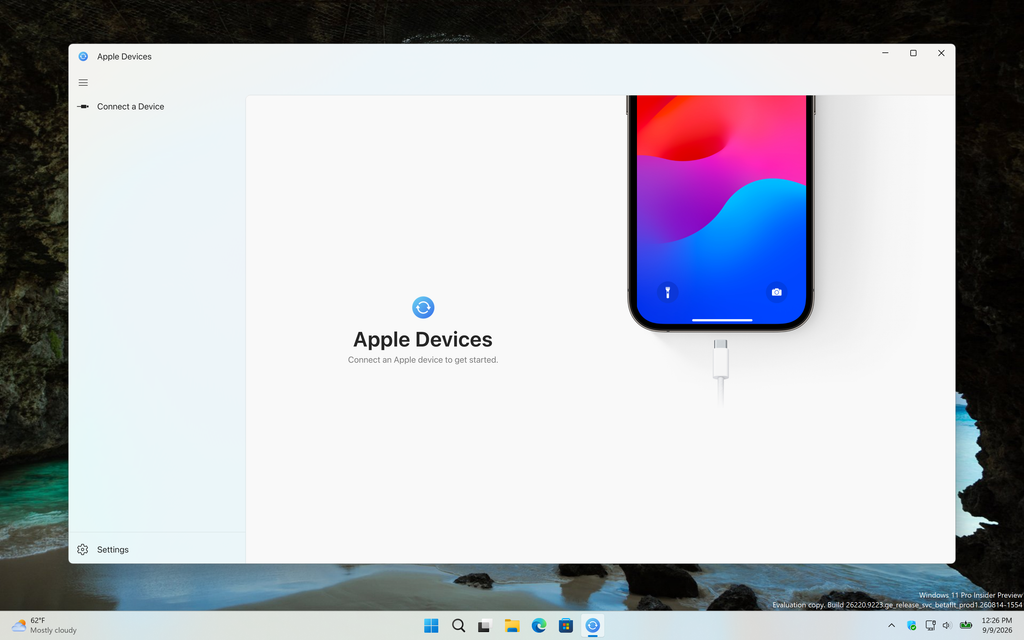
This Apple app makes sure it can detect all Apple devices on your Windows 11 computer, including iPod Touch, iPhone, iPad, and AirPods.
- Install Battery Meter Windows app
Now, to get Battery Levels visible in the Windows 11 widget, you need to download the free Battery Meter app from the Microsoft Store.
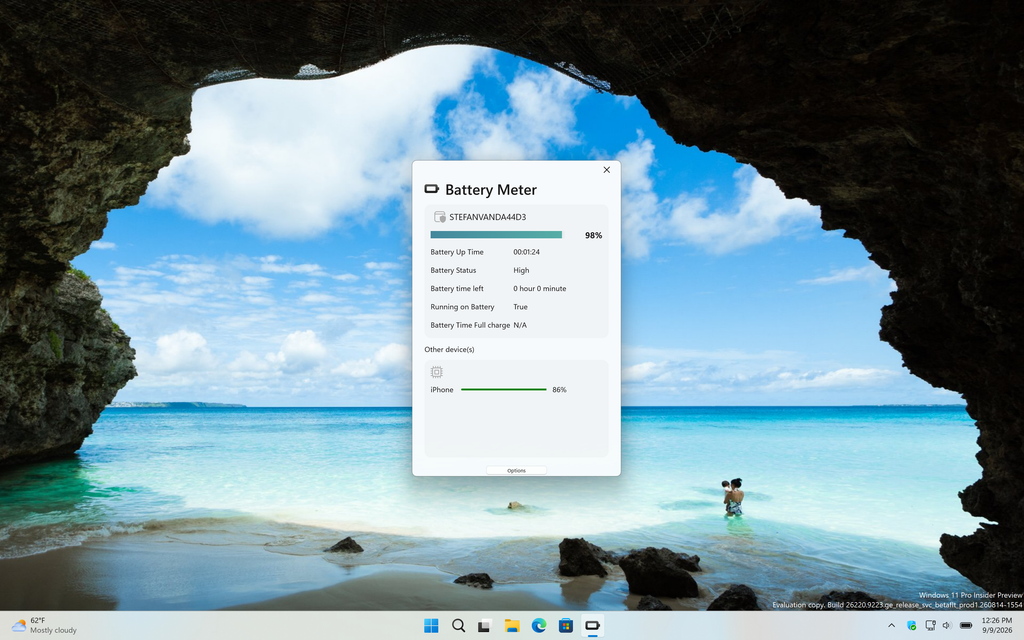
When the application is installed, open it from the Start menu. You will see this screen, where the current battery level of your local device is displayed at the top. Below that, you will see a list of connected devices, including the battery level of your iPhone.
Windows Widget
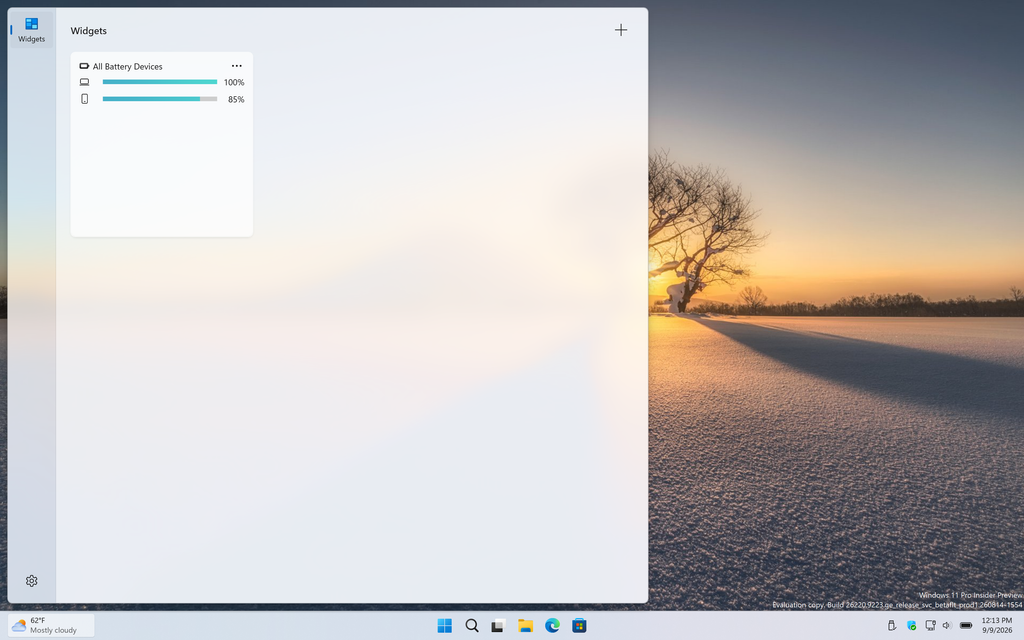
To show the widget, click the weather icon in the bottom-left corner of the Windows 11 taskbar. The Windows 11 Widgets board will appear. Next, click the + (plus) button to add a widget. From the list of available widgets, select “Battery Meter” and then click the Add button.
Final Though
Now you know how to show iPhone and iPad battery levels in the Windows 11 widget and the application window.
